
Table of Contents
- Style Management
- CMS Page Templates
- Working With Custom HTML Modules' Content Editors (WYSIWYG)
- General Tips/Advice for CMS Users
- Additional Notes
- Section Guide
Style Management
Heading styles
List of available heading styles.
| Example | Style name and usage notes |
|---|---|
|
Heading 1 |
h1 / Heading 1 Usually applied to headings that are h1 level |
|
Heading 2 |
h2 / Heading 2 Usually applied to headings that are h2 level |
|
Heading 3 |
h3 / Heading 3 Usually applied to headings that are h3 level |
|
Heading 4 |
h4 / Heading 4 Usually applied to headings that are h4 level |
|
Sub heading |
h5 / Heading 5 / Sub heading Usually applied to headings that are h5 level |
Text styles
List of text styles available and in use
| Example | Usage notes |
|---|---|
|
Lorem ipsum dolor sit amet, consectetur adipiscing elit, sed do eiusmod tempor incididunt ut labore et dolore magna aliqua. Ut enim ad minim veniam, quis nostrud exercitation ullamco laboris nisi ut aliquip ex ea commodo consequat. |
Body (paragraph) text Default font styes applied to body copy |
|
List style Default unordered list style, please note that the default body text styles are used |
| Lorem ipsum |
Link style Hyperlink style |
|
Button styles Button labels are the name of the styles they are using |
CMS Page Templates
What CMS page templates are available to create new pages with?
The following CMS page templates are available in the "Primary CMS Theme" theme:
- There are currently no page templates available.
In which theme should I create my page? / Which theme should my page be assigned to?
To use one of the CMS page templates, you must create your page inside the theme where the desired CMS page template resides. You may later assign the page to another theme if needed.
See General Tips/Advice for CMS Users for more details.
What if I don't need all the sections used in a template?
Before using a CMS page template to create a page, determine if you’re going to need all the sections used in that template. Then, after using the template to create a new page, remove the sections from the page which aren’t needed BEFORE SAVING THE NEW PAGE. This prevents those sections from ever being created and we avoid cluttering the system with unused sections and modules.
Can I create a CMS page without using one of the CMS Page Templates?
See General Tips/Advice for CMS Users.
Working With Custom HTML Modules' Content Editors (WYSIWYG)
How do I replace placeholder ("lorem ipsum") or unwanted text content?
The content editor can be finicky. To replace placeholder or unwanted text, we recommend that you first click the “BLOCKS” button in the toolbar to reveal outlines surrounding block-level elements. Then, select the text you wish to replace and type in your desired text. Or, you can place your cursor at the end of the text you want to replace, add your desired text, and then select and delete the placeholder text preceding it. We do NOT recommend selecting all placeholder text in the editor and deleting it before you add your desired content. As a result you may accidentally erase necessary markup that the content depends on. It is always best to edit text elements one at a time rather than deleting everything you don’t want from the start.
Can I copy/paste from other sources?
Be very careful when copy/pasting text content from other sources into a Custom HTML module's content editor. When copying from an external document, take steps to ensure the text you are copying is plain text (as opposed to rich text.) When copying from a web page, make sure you are ONLY including text and not actual HTML tags (<p>, <br>, etc.) as this could result in unintended styling/format inconsistencies.
How do I change the appearance of text content (color, font size, etc)?
The “STYLE” dropdown in the toolbar can be used to edit the styling/appearance of content. Keep in mind that when you add a style from the dropdown, it does not overwrite other styles previously applied to the element. This allows greater flexibility in cases where you may need more than one style applied, but you will need to remember to uncheck undesired styles after applying them.
Please refer to Style Management for examples of classes/styles you may apply.
Keep in mind that changing the appearance or styles of text should be done SPARINGLY - for the sake of consistency across pages, it is best to stick with the module's default styling whenever possible.
How do I add/edit a link?
The "insert/edit link" button in the toolbar is used to create and modify links:
To create a new link, type your desired link text within the content editor, select it, and then click the "insert/edit link" button. This may be tricky if you're creating a new link next to an already-existing link. To do this, place your cursor at the end of the existing link's text and then press the right arrow key, so your cursor is outside the existing link. Then, type the new link's text, select it and click the "insert/edit link" button.
To modify an existing link, click into the middle of the link text within the content editor, then click the "insert/edit link" button.
Note: Using proper link text is very important. For more details, see "Does it matter what I use for link text?" in General Tips/Advice for CMS Users.
How do I add/edit an image?
The "asset picker" button in the toolbar allows you to add images into the content editor. To modify an existing asset, click the asset and then click the "asset picker" button. Not all custom HTML modules were made with the intent to have an image placed in them. (Tip: If your default placeholder content did not contain an image, you should avoid adding one with this tool.)
Note: If you're including an image in a Custom HTML module, remember to consider the image alt text (which is editable through the "asset picker" button), and include a value when necessary. For more details, see "Do I need to update/include alt text for every image?" in General Tips/Advice for CMS Users.
How do I add a code snippet?
The "insert code snippet" button in the toolbar adds pre-made snippets of code into the content editor. Note that code snippets are primarily (but not always) used as a way to revert either the entire content of a Custom HTML Module to its default state, or to revert a part of its content to its original state. For example, if you accidentally delete the quote in one of the Custom HTML Modules in a "Two Testimonials" section, you can use a code snippet to add a default quote which you can then edit as needed. In most cases you will not need to use code snippets unless you're attempting to "fix" a module (i.e. bring back original content which was since removed.)
IMPORTANT: Be very careful to only use code snippets that are intended for use in the specific module you’re editing. In most cases the name of the code snippet should partially or exactly match the name of the module you’re editing. A list of all code snippets that are intended for use within a module will appear in that module's parent section's documentation in the Section Guide. Do not use a code snippet when the section name in the title of the code snippet does not match the section you are currently editing. For example, if you're editing a section created from a section template labeled as "Intro Copy" you should only be using code snippets whose titles include "Intro Copy."
I've messed up my edits and would like to revert to the original "lorem ipsum" placeholder content. Is there a way to do that?
Check to see if the module you're editing has a default code snippet available. The name of the snippet should match the name of your module (minus the given section name prefix.) If so, you may delete the entire content and then insert the appropriate code snippet. Some modules don't have default code snippets available, but they may have other snippets which could replace specific portions of your content.
Does it matter which levels of headings (H1, H2, etc) I use in my content?
Yes. For SEO and accessibility purposes, it is important that your page’s heading structure is hierarchical. This means that your page’s top heading needs to be an h1 heading.
You should also be careful to avoid skipping heading levels (i.e. using an h3 heading before an h2 has been used, etc.) If you need to change the appearance of a heading without changing the level, apply one of the heading classes from the content editor's "STYLE" dropdown (see Style Management for a list of these heading style classes.)
General Tips/Advice for CMS Users
How can I ensure that my content will be accessible to all users?
Be sure to follow all recommendations and instructions given in this guide, particularly the recommendations involving link text, image alt text, and heading levels. To learn more about accessibility, please see Accessibility for Radancy CMS Publishers.
Can I change the layout assignment of a page/section/module?
You should never change a layout assignment unless specifically instructed to do so in the relevant section's documentation found in the Section Guide. This will almost always lead to unintended results.
Can I add a module to a section?
You should never add a module to a section unless specifically instructed to do so in the relevant section's documentation found in the Section Guide. This will almost always lead to unintended results.
When I'm adding a section from the "Add New" section menu to a page, what should I name my new section?
To avoid future confusion, especially for other CMS users who may need to edit/update the content you're creating, naming conventions should be consistent throughout the site. When creating a section that you anticipate will only be used on the page you're adding it to, we recommend the following naming convention: [Page Name OR Abbreviated Page Name] - [Section Template Name] [Number (only include if you anticipate other sections of the same template will be added to the same page.)] For example, "Benefits - Body Copy" or "DEI - Body Copy 1." If you anticipate that the section you're creating may be used on other pages as well, we suggest giving it a name that summarizes its purpose/intent rather than its content or context (which may change or be updated later.) For example, "Human Resources Job List" or "Annual Job Fair CTA."
Note: While you CAN change a section's name after creating it, you will NOT be able to change the names of the modules included in the section (which will, by default, include the ORIGINAL section name.) So we recommend that you carefully choose a good name for each section you create.
Can I create a CMS page without using one of the CMS Page Templates?
Yes, but this is not recommended as creating a page without using a CMS Page Template will require you to select a page layout. To avoid selecting the incorrect layout, we recommend using one of the available CMS Page Templates, in all cases.
If you are looking to create a "blank" page, see the next question.
How do I create a "blank" page?
To create a blank page, click the "Add Page" button in the "Primary CMS Theme" theme and select the "Blank" page option. Select the layout named "v1 - Content Page -- CMS (CMS)".
Which theme should my page be assigned to?
All CMS pages should be assigned to the "Primary CMS Theme" theme.
DO NOT assign any CMS pages to the "Default Theme (GST)" theme. This theme is enabled for CMS due to system requirements, but it is NOT intended to be used as a theme for CMS Pages.
Do I need to update/include alt text for every image?
Every time you add or replace an image file, you should consider whether to include alt text for the image. In some cases, such as when the image is considered descriptive and not essential to the page content, alt text may be left blank. For more details, please see this alt text decision tree. Not only are these considerations essential in making the site accessible to non-visual users, it will also improve SEO.
Does it matter what I use for link text?
It matters a lot. To make links accessible to all users, use link text that would make sense to users if taken out of the surrounding context. For example, "learn more about our benefits" is acceptable, whereas "click here" or "learn more" are not. This is important in all situations but be particularly careful when adding/editing links inside Custom HTML modules, as you'll have full control over what text is included in a link.
How do I update/add a hero banner to my page?
Our site uses custom banners to allow for greater flexibility in the content included. "Hero - (Section 4)" is the default designated hero banner template to use. For more instructions on how to use this module, please refer to the "Section Guide" below.
Additional Notes
How can I add to or update the notes to this section?
Find this section (title: “Style Guide User Notes Section”) in your section list and edit its “Style Guide User Notes” module to add as many notes as you'd like right here. Be careful to not delete any of the content above or below your notes!
Add your notes below:
Section Guide
Before using a section in the CMS, please read the corresponding documentation for that section. Documentation is found above each section in this guide (identified by the dark grey background and white text styling listed below).
Note that sections have a "Section Usage" label indicating which menu they can be found in after clicking the "add section" button on any page:
- "Section Usage: Use existing" - find this section in the "Use Existing" Menu.
-
"Section Usage: Add new" - find this section in the "Add New" Menu.
Keep in mind that when you edit a section from the "Use Existing" Menu, you are editing every instance of that section. Sections added via the "Add New" Menu are safe to be edited freely, as a new instance of the section is created every time it's added to a page.
Hero - (Section 4)
CMS Enabled: Yes
Section Usage: Add new
Suggested Use: Primarily used as the page's hero banner. It is recommended to create a new version for each page on the site.
Notes: Create a new version using the "Add new" menu. Both modules, Section 4 - Copy and Section 4 - Media, can be edited.
Available Code Snippets:
- v1 - Section 4 - Copy Reset: Used to reset the copy back to the default style and lorem ipsum copy.

Hero - (Section 4a)
CMS Enabled: Yes
Section Usage: Add new
Suggested Use: Copy and media content
Notes: Create a new version using the "Add new" menu. Both modules, Section 4a - Copy and Section 4a - Media, can be edited.
Available Code Snippets:
- v1 - Section 4 - Copy Reset: Used to reset the copy back to the default style and lorem ipsum copy.
Heading test
Lorem ipsum dolor sit amet, consectetur adipiscing elit, sed do eiusmod tempor incididunt ut labore et dolore magna aliqua. Lorem ipsum dolor sit amet, consectetur adipiscing elit, sed do eiusmod.

Copy and Media - (Section 6)
CMS Enabled: Yes
Section usage: Add new
Suggested Use: Copy and media content
Notes: Create a new version using the "Add new" menu. Both modules, Section 6 - Text and Section 6 - Media, can be edited.
Available Code Snippets:
- v1 - Section 6 - Text Reset: Used to reset the copy back to the default style and lorem ipsum copy.
Heading test
Lorem ipsum dolor sit amet, consectetur adipiscing elit, sed do eiusmod tempor incididunt ut labore et dolore magna aliqua. Lorem ipsum dolor sit amet, consectetur adipiscing elit, sed do eiusmod.

Media and Copy - (Section 7)
CMS Enabled: Yes
Section usage: Add new
Suggested Use: Copy and media content. When a compatible video format is used, there will be a play button on the background image which will display a overlay and play the video.
Notes: Create a new version using the "Add new" menu. Both modules, Section 7 - Text and Section 7 - Media, can be edited. The text can be reset to two versions differing by function. The first, "v1 - Section 7 - Text Reset", will include lorem ipsum copy with a link (which can be edited to point to another page). The second option, "v1 - Section 7 - Text (Button) Reset", includes lorem ipsum copy with a button (which looks like a text link) will show the overlay and play the video.
Available Code Snippets:
- v1 - Section 7 - Text Reset: Used to reset the copy back to the default style and lorem ipsum copy. Contains a link to another page.
- v1 - Section 7 - Text (Button) Reset: Used to reset the copy back to the default style and lorem ipsum copy. Contains a button (styled as text link) which shows the overlay.

Lorem ipsum dolor sit amet, consectetur adipiscing elit.
Multi item - (Section 8)
CMS Enabled: No
Section usage: Use Existing
Suggested Use: 2 related content links
Notes: Use this section when you want the related content to feature pages tagged with the "Related Content" CPM channel, randomly ordered. Note that if the page featuring this section has any job data mappings applied, related content will only show pages from the channel that match those mappings. To add a content page (or offsite content page) to this feed, tag it with the "Related Content" CPM Channel.
Heading 3
-
 Salaristool
 -
-
-
-
-
Leren en ontwikkelen Van stage tot traineeship, van innovatie tot kennisdeling, ontdek alle mogelijkheden om te groeien.
-
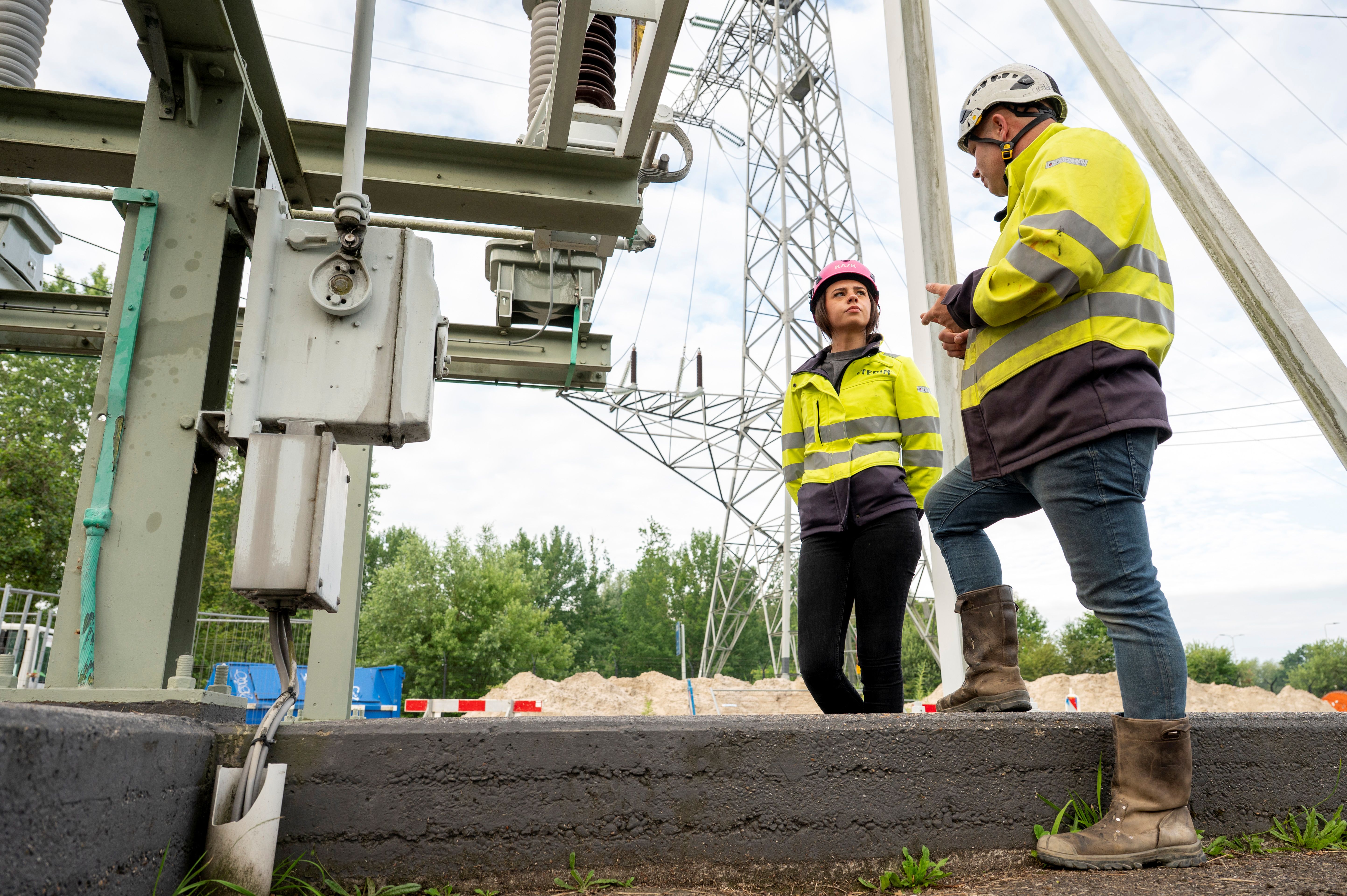
Meet- & Regeltechniek In de wereld van meet- & regeltechniek zorgen we ervoor dat het energienet precies doet wat het moet doen. We werken aan hoogspanningsstations, automatisering en besturing van installaties die Nederland draaiende houden.
-
Hoe houd je stalen gasleidingen veilig? Lees alles over Kathodische bescherming: "het snijvlak tussen elektrotechniek en scheikunde."
-
Van data naar beslissingen: het werk van Amadou Benieuwd hoe het is om te werken als BI Consultant bij Stedin? Amadou vertelt waarom hij de overstap maakte van consultancy naar een vaste rol binnen een hecht data-team en hoe hij dagelijks bijdraagt aan het data warehouse en datagedreven besluitvorming.
-
Werken & Leren Ontwikkelingen gaan in sneltreinvaart en wij moeten mee. We denken niet aan hoe we het gisteren deden, maar hoe we het morgen gaan doen. Dat betekent dat we volop inzetten op jouw professionele en persoonlijke groei. Ook als je nog niet de relevante diploma’s hebt, kun je bij ons aan de slag als monteur.
-
IT & Data De energietransitie, één van de grootste uitdagingen ooit. Het realiseren van een duurzame leefwereld vraagt om innovatieve oplossingen. En daar speel jij als IT’er een grote rol in.
-
Officemanagement & Managementondersteuning Altijd overzicht, altijd ondersteuning. Bij Officemanagement & Managementondersteuning zorg je dat alles achter de schermen soepel loopt, zodat de organisatie zich kan focussen op haar kerntaken.
-
Engineering Generalist Van klantvraag tot netberekening, van advies tot opleiding: wij maken van energieplannen de werkelijkheid. Engineering bij Stedin gaat verder dan kabels en kasten: wij zijn ook de schakel tussen techniek en mens.
-
Veel puzzelen, nog meer voldoening | Ontmoet onze Engineers Achter onze witgele busjes en onder onze straten gaat een wereld schuil vol complexe netten, slimme modellen en technische puzzels waar jij waarschijnlijk warm van wordt.
-
Compliance & Juridische Zaken Bij Compliance & Juridische Zaken zorg je dat Stedin altijd binnen de wettelijke kaders blijft. Je bent de strategische sparringpartner van de business en houdt toezicht op naleving van wet- en regelgeving.
-
Elektrotechniek Elektrotechniek draait om doen. Jij zorgt voor energie in Nederland …letterlijk. Of je nu kabels legt, schakelkasten monteert of een storing oplost: Jij houdt het licht aan.
-
Stedin Academie Bij Stedin werken we aan het energienet van de toekomst. Het werk is nooit af. Je kiest dus niet voor een baan, maar voor een carrière met volop mogelijkheden. Wij zorgen voor omscholing en bijscholing.
-
Supply Chain Management Van inkoop tot logistiek, van planning tot transport: binnen Supply Chain Management zorg jij dat alles op het juiste moment op de juiste plek is.
-
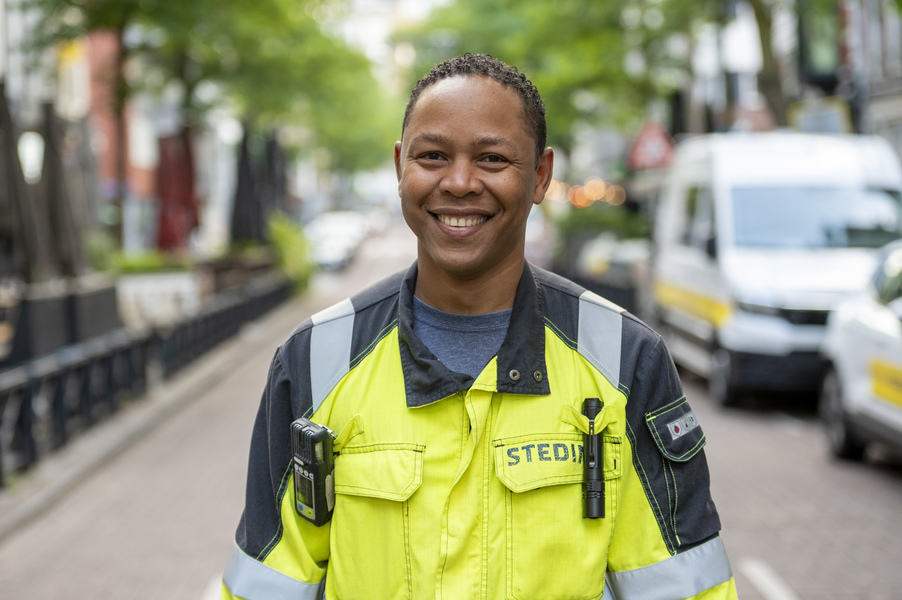
Elektromonteur Gerda versterkt het elektriciteitsnet Gerda werkt als elektromonteur bij Stedin en helpt woningen klaar te maken voor een toekomst. Of het nu gaat om een laadpaal voor een elektrische auto of de overstap naar elektrisch koken: zij zorgt ervoor dat de elektriciteitsaansluiting veilig en betrouwbaar kan worden verzwaard.
-
Traineeships / Toekomstmakers Met jouw eerste werkervaring direct impact maken? In het traineeship maak jij als Toekomstmaker werk dat energie oplevert.
-
Staf & Klantrelaties Iedereen bij Stedin werkt aan de energietransitie, ook als je niet met veiligheidskleding op een project staat. Vanuit Staf & Klantrelaties ben je de kracht achter de operatie. Je onderzoekt, analyseert en bedenkt de beste aanpak voor nu én straks. Of je nu werkt aan beleid, financiën, communicatie of HR: jij maakt het verschil. Dat is 9-5 werk, met 24/7 impact.
-
Toekomstmaker Diede bereidt het energienet van de toekomst voor Bij Stedin staan we midden in de energietransitie en dat vraagt om nieuwe manieren van werken én nieuwe mensen die met frisse blik het verschil maken.
-
Asset Management Werk dat energie oplevert
-
Engineering Gas De energietransitie is geen sprint. Het is een complexe puzzel die we samen leggen: stap voor stap, jaar na jaar. Als gas engineer werk je aan slimme oplossingen die technisch kloppen én toekomstbestendig zijn.
-
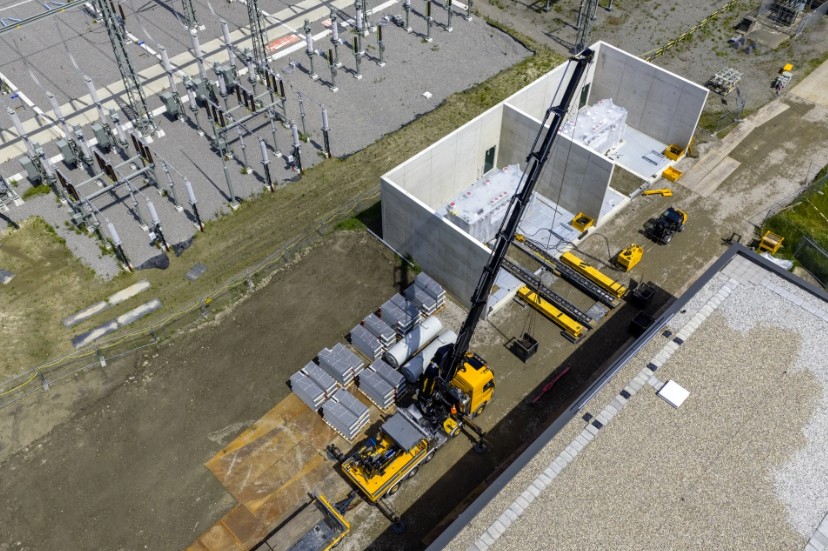
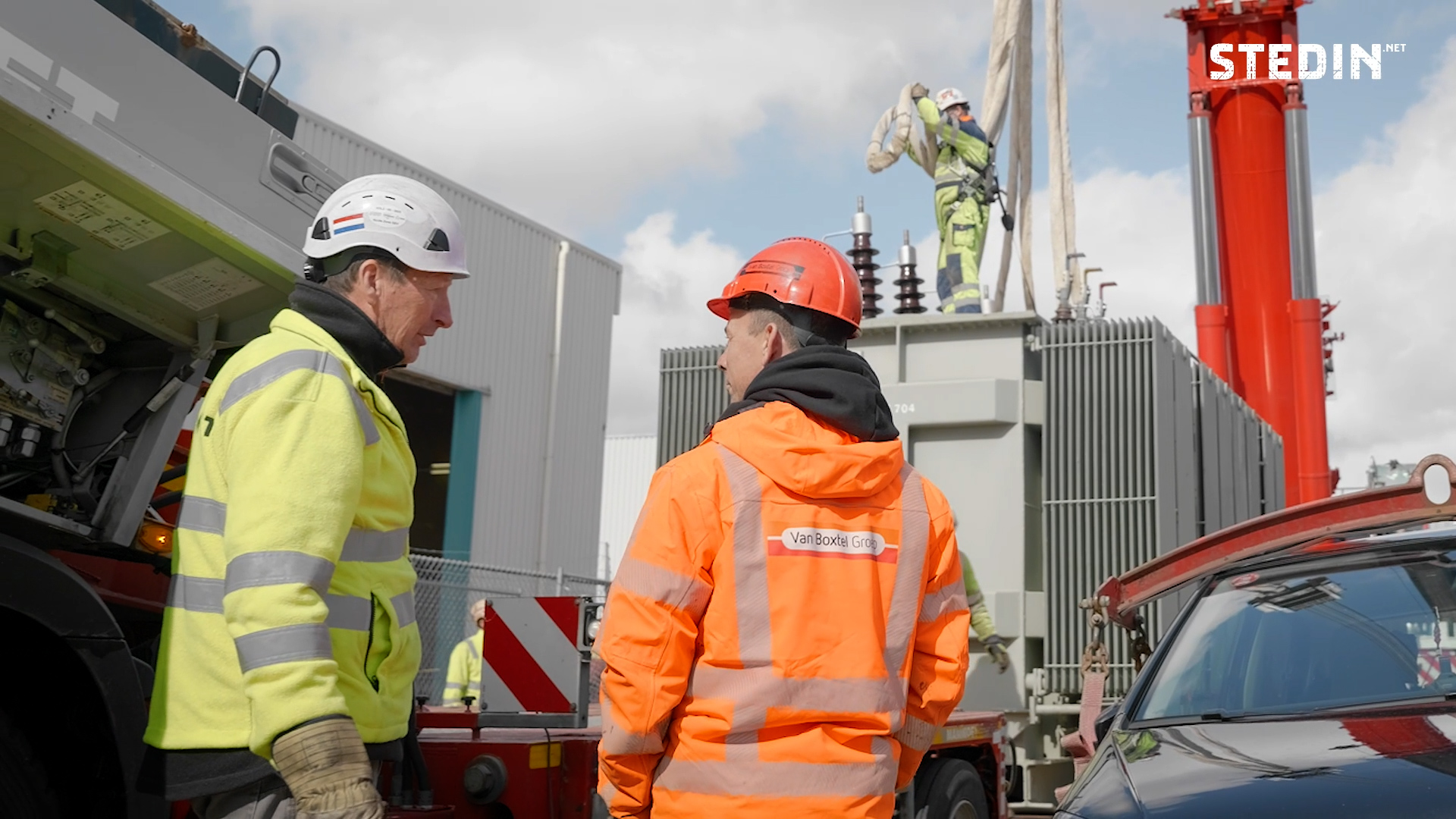
Zo voorzien Mattijs en Rinke Goes van stroom Om nog meer mensen in Zeeland van energie te voorzien zijn er twee nieuwe transformatoren van elk 100.000 kilo aan op hoogspanningsstation Goes de Poel.
-
Van hoogspanningsmonteur naar teamleider Doorgroeien en ontwikkelen staan centraal binnen Stedin. De energiewereld staat nooit stil en onze collega’s dus ook niet.
-
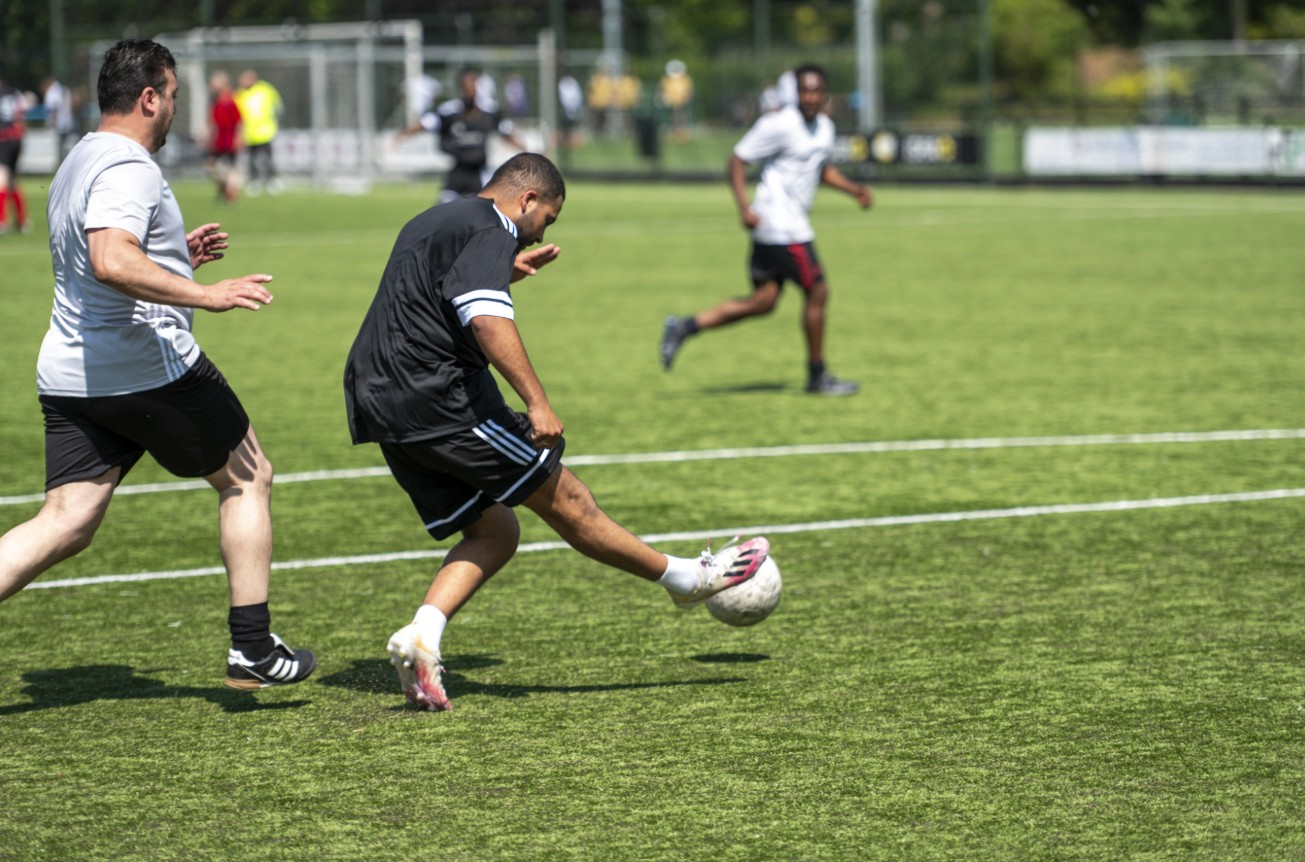
Voetbaltoernooi Stedin Denk je aan Stedin, dan denk je misschien niet aan voetbal. Maar ons Stedin Groep voetbaltoernooi in inmiddels al legendarisch!
-
Women in Engineering Bij Stedin werken veel collega’s aan de energietransitie, waaronder een groeiende groep vrouwelijke engineers. Hun verhalen laten zien hoe veelzijdig en inspirerend een carrière in techniek kan zijn.
-
Ontmoet Toekomstmaker Tijs Bekkers Met een achtergrond in Civiele Techniek en een master Offshore and Dredging Engineering koos Tijs Bekkers voor het Traineeship Toekomstmaker bij Stedin.
-
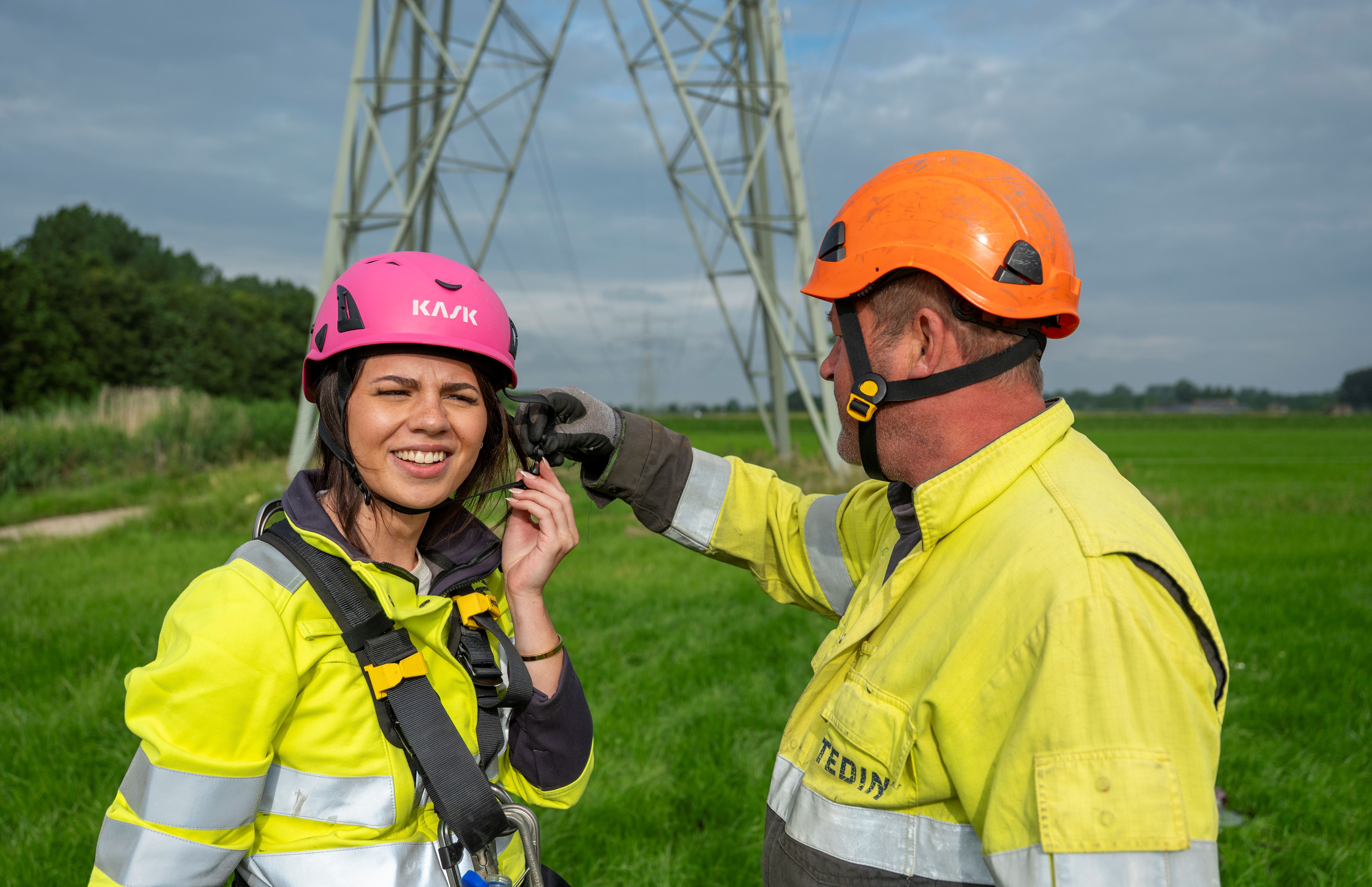
Vader en dochter in de hoogspanning Bij Stedin voelt werken vaak als onderdeel zijn van een grote familie. Voor Gert en Frederique is dat letterlijk zo: vader en dochter werken samen als hoogspanningsmonteurs bij de afdeling Zakelijk Complex.
-
Gelijke kansen via het Service Team Operations Gelijke kansen staan centraal bij Stedin. Vanuit deze overtuiging werd in 2019 het Service Team Operations (STO) opgericht: een initiatief dat mensen met een afstand tot de arbeidsmarkt de kans biedt zich te ontwikkelen tot assistent-monteur.
-
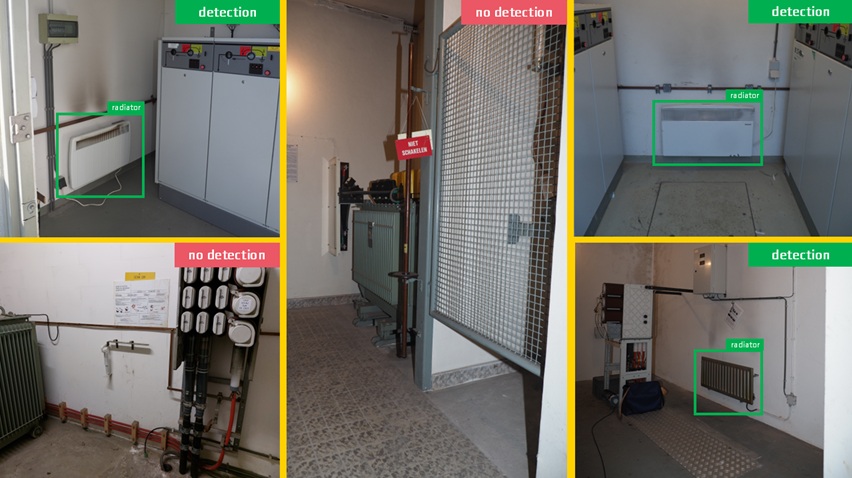
Hoe AI 11 weken aan handmatig klikwerk terugbrengt naar een paar uur In sommige middenspanningsstations loeien kachels die allang uit hadden gekund. AI heeft ons geholpen veel van deze overbodige kachels sneller op te sporen.
-
Linnen, inkt en een vaste hand Zo tekenden we 100 jaar geleden het elektriciteitsnet
-
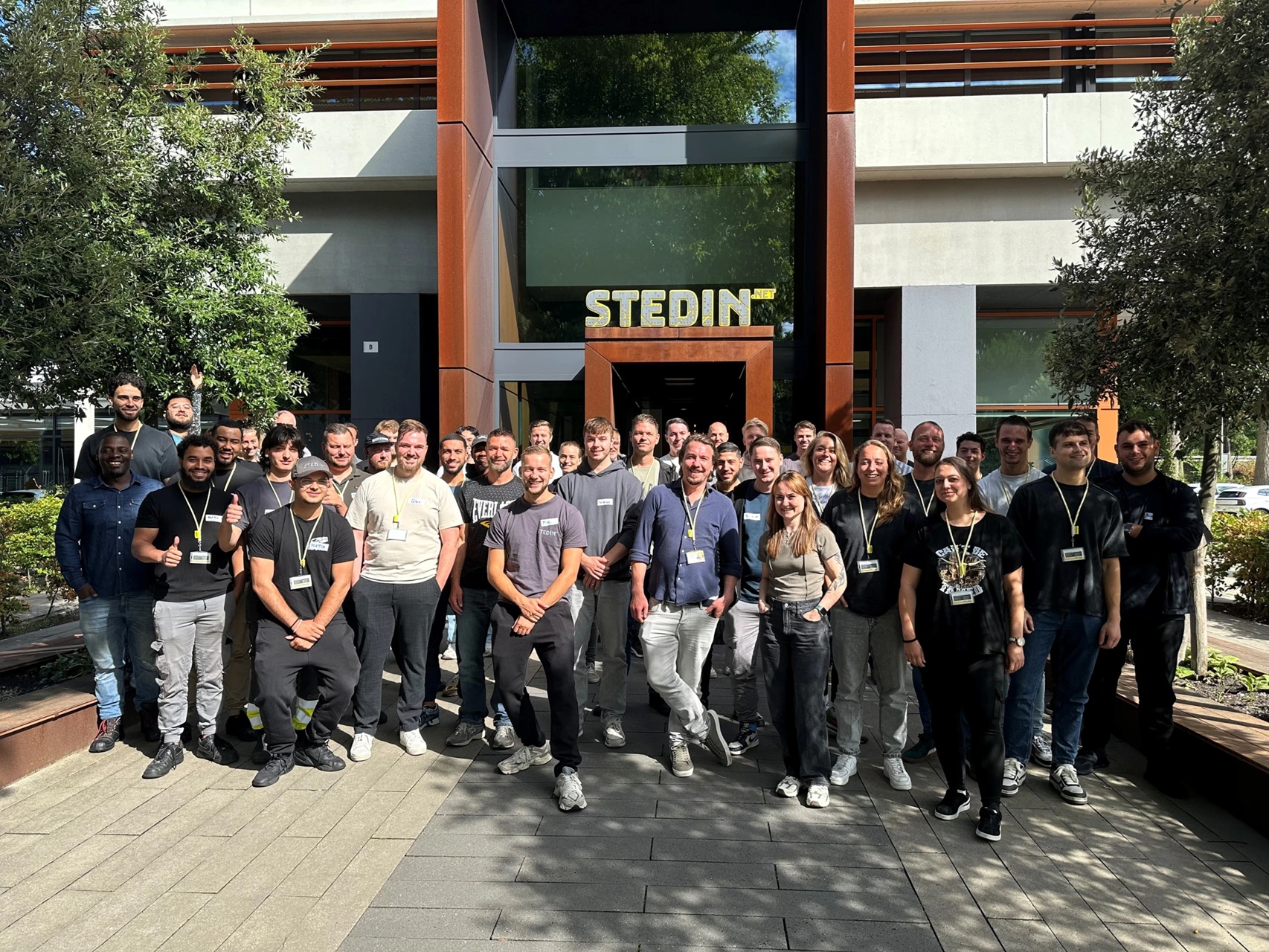
50 nieuwe zij-instromers starten bij Stedin Op 1 augustus zijn ruim 50 nieuwe zij-instromers gestart bij Stedin! Deze kersverse collega’s starten een werk- en leertraject via onze eigen Stedin Academie en worden opgeleid tot elektra- en gasmonteurs.
-
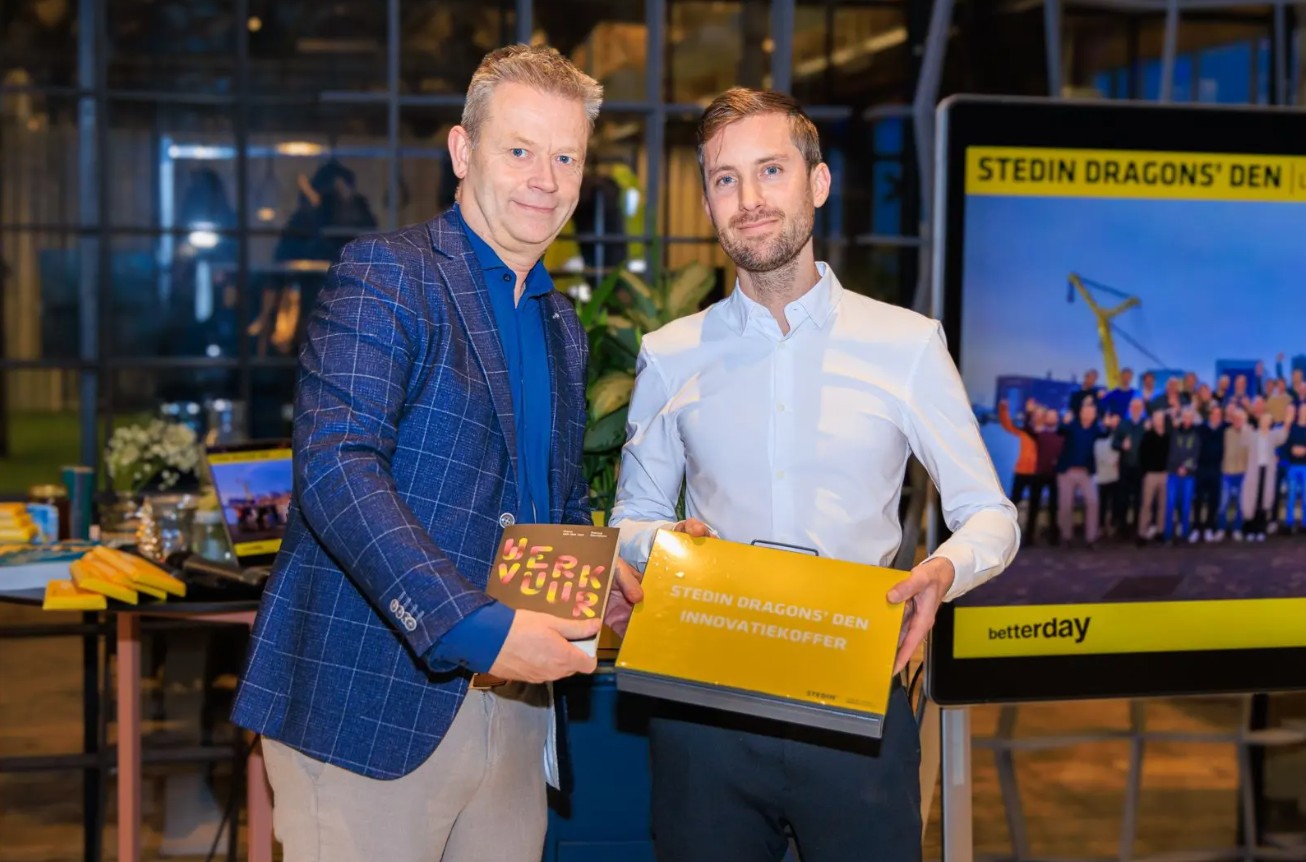
Paul Hutten doet mee aan Dragons’ Den “We willen van Stedin een geweldige werkplek maken voor iedereen”
-
Grootste veiligheidsoperatie ooit Ons land stond in juni 2025 even in de wereldwijde spotlights. Wereldleiders van over de hele wereld kwamen bijeen tijdens de NAVO-top in Den Haag om te praten over veiligheidskwesties. Wat heeft dat met Stedin te maken, vraag je je misschien af? Lees het hier!
-
Finance, audit & risk De dagelijkse business financieel gezond houden. En tegelijkertijd het financiële fundament leggen voor de nieuwe energietransitie. Dat is de enorme uitdaging waar we bij Finance voor staan.
-
Marketing, Verkoop en Communicatie Bij Marketing, Verkoop & Communicatie zorg je dat Stedin niet alleen vandaag, maar ook morgen relevant en herkenbaar is. Jij vertaalt complexe uitdagingen van de energietransitie naar heldere boodschappen en slimme strategieën.
-
Hüseyin is Baas van Morgen Op 3 juni verwelkomden we onze Baas van Morgen: Hüseyin, 16 jaar en leerling van Portus Juliana in Rotterdam. Voor één dag mocht hij plaatsnemen op de stoel van Marianne van der Maarel, directeur Instandhouding.
-
Development Bij Stedin draait het niet alleen om energie in het net, maar ook om energie in onze systemen.
-
HRM Bij HRM zorg je dat Stedin niet alleen vandaag, maar ook morgen de juiste mensen op de juiste plek heeft. Jij bent de sparringpartner en helpt collega's bij vraagstukken over teamontwikkeling, verzuim en duurzame inzetbaarheid.
-
Elektro, Telecommunicatie & Dataverkeer Van kabels en transformatorstations tot dataverkeer en telecom: wij werken aan de systemen die ons energienet aansturen, beveiligen en verbinden
-
Engineering Elektra Slimme oplossingen voor complexe uitdagingen. Of je nu werkt aan het ontwerp van een nieuw hoogspanningsstation of een aanvraag voor een laadpaal: jouw werk is onmisbaar voor de energietransitie.
-
Privacy en Security De wereld digitaliseert razendsnel en cyberdreigingen groeien mee. Bij Stedin zorgen wij dat data, systemen en processen veilig blijven.
-
Stage lopen Of je nu zoekt naar een uitdagende afstudeeropdracht, een meewerkstage waar je veel kunt leren óf een snuffelstage om te zien of werken in de techniek iets voor jou is, bij Stedin is het mogelijk.
-
Data Analyse & Business Intelligence Werken aan de energietransitie doe je niet alleen met kabels en transformatoren, maar ook met data. Elke dag komen er bij Stedin bergen data binnen: uit onze eigen systemen, maar ook van buiten.
-
Netwerk & Infra Cloudomgevingen, netwerken en infrastructuur die altijd beschikbaar, veilig en duurzaam zijn: daar zorgen onze Netwerk & Infra teams voor. Zonder deze expertise kan geen enkele collega zijn werk doen en kan de energietransitie niet slagen.
-
Techniek Technisch werk dat energie oplevert.
-
Diversiteit en inclusie We werken beter als we allemaal onszelf kunnen zijn, met respect voor ieders talent, achtergrond en blik.
-
Management Werk dat energie oplevert
-
Werkgebieden Van kabels en leidingen tot innovatie en slimme netten, overal gebeurt het werk dat energie geeft.
-
Dit is Stedin Ontdek wie we zijn, waar we voor staan en hoe we samen bouwen aan de energie van morgen.
-
Goed werk, goede voorwaarden Bij Stedin zorgen we goed voor de mensen die zorgen voor ons energienet. Ontdek wat jij van ons kunt verwachten.
-
Neem contact met ons op Heb je een vraag of wil je meer weten over werken bij Stedin? We helpen je graag verder.
-
Onze locaties Bekijk onze vestigingen en ontdek waar jij aan de slag kunt.
-
Management & Bedrijfskunde Complexe vraagstukken, slimme keuzes. Of je nu werkt aan strategie, beleid, innovatie of procesverbetering: jouw werk is onmisbaar voor de energietransitie
-
Project Management Bij Stedin stuur je niet zomaar een project of proces. Je brengt de energietransitie écht verder, van nieuwe stations tot gebiedsontwikkelingen, optimalisatieprogramma’s, verandertrajecten en slimme netoplossingen.
-
Inleen De energiewereld verandert snel en Stedin staat voor de uitdaging om het bestaande energienet te optimaliseren én tegelijkertijd te bouwen aan een nieuw, toekomstbestendig systeem. Daarom heeft Stedin regelmatig tijdelijke professionals en zzp’ers nodig om extra capaciteit en specialistische kennis in te zetten.
-
Open dagen Stedin Academie Altijd al eens een kijkje willen nemen achter de schermen bij een grote netbeheerder? Dat kan! Op 31 januari en 7 februari organiseren wij weer onze jaarlijkse open dagen op de locaties van de Stedin Academie
-
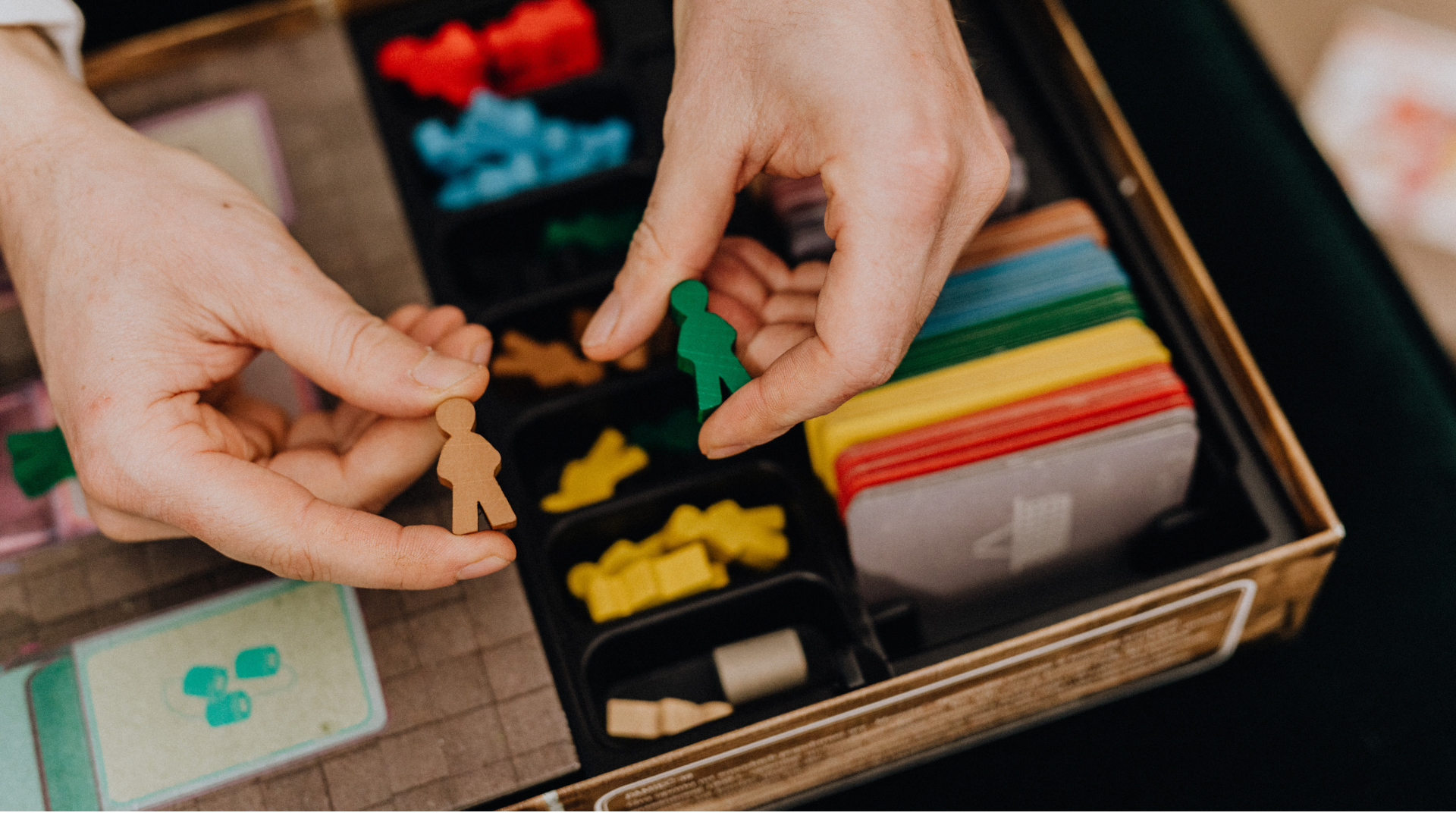
Bordspellenavond bij IT Bij Stedin werken we hard, maar we weten ook hoe belangrijk het is om af en toe te ontspannen. Daarom organiseren we weer onze inmiddels legendarische bordspellenavond op de IT-afdeling.
-
-
Werken als Scrum Master bij Stedin Hoe is het om te werken als Scrum Master bij Stedin? Rick, Ivy en Berry vertellen hoe zij teams helpen om continu te verbeteren, wat agile werken bij Stedin bijzonder maakt en waarom zij elke dag met plezier bijdragen aan de energietransitie.
-
Een mooie carrièrestart voor Toekomstmaker Gijs Bij Stedin staan we midden in de energietransitie en dat vraagt om nieuwe manieren van werken én nieuwe mensen die met frisse blik het verschil maken.
-
Spot de Big Five tijdens de Big Room Safari Tijdens onze Big Room Safari krijg je als nieuwsgierige professional van buiten Stedin een uniek kijkje in de keuken van onze IT‑organisatie.
-
Ontmoet Toekomstmaker Luc Bij Stedin staan we midden in de energietransitie en dat vraagt om nieuwe manieren van werken én nieuwe mensen die met frisse blik het verschil maken.
-
Aan de slag met SAP bij Stedin Impact maken op de energietransitie met de nieuwste SAP technieken. Onze enthousiaste collega's vertellen je graag hoe zij dat doen!
-
Standaardiseren om te versnellen Wat hebben Lego en hoogspanningsstations met elkaar gemeen? Net als bij Lego draait het bij hoogspanningsstations om standaard bouwstenen die je slim combineert. Mathijs Bos en Sander Baltes, projectengineers bij Zakelijk Complex, werken bij Stedin aan precies dat principe.
-
Werken aan een sterker elektriciteitsnet In Prinsenland en Het Lage Land schakelden collega’s van Stedin in één keer een volledige wijk over op een sterker elektriciteitsnet. Zo’n 6.500 huishoudens en meerdere winkelcentra gingen van het oude 10 kV net naar een toekomstbestendig 23 kV net.
-
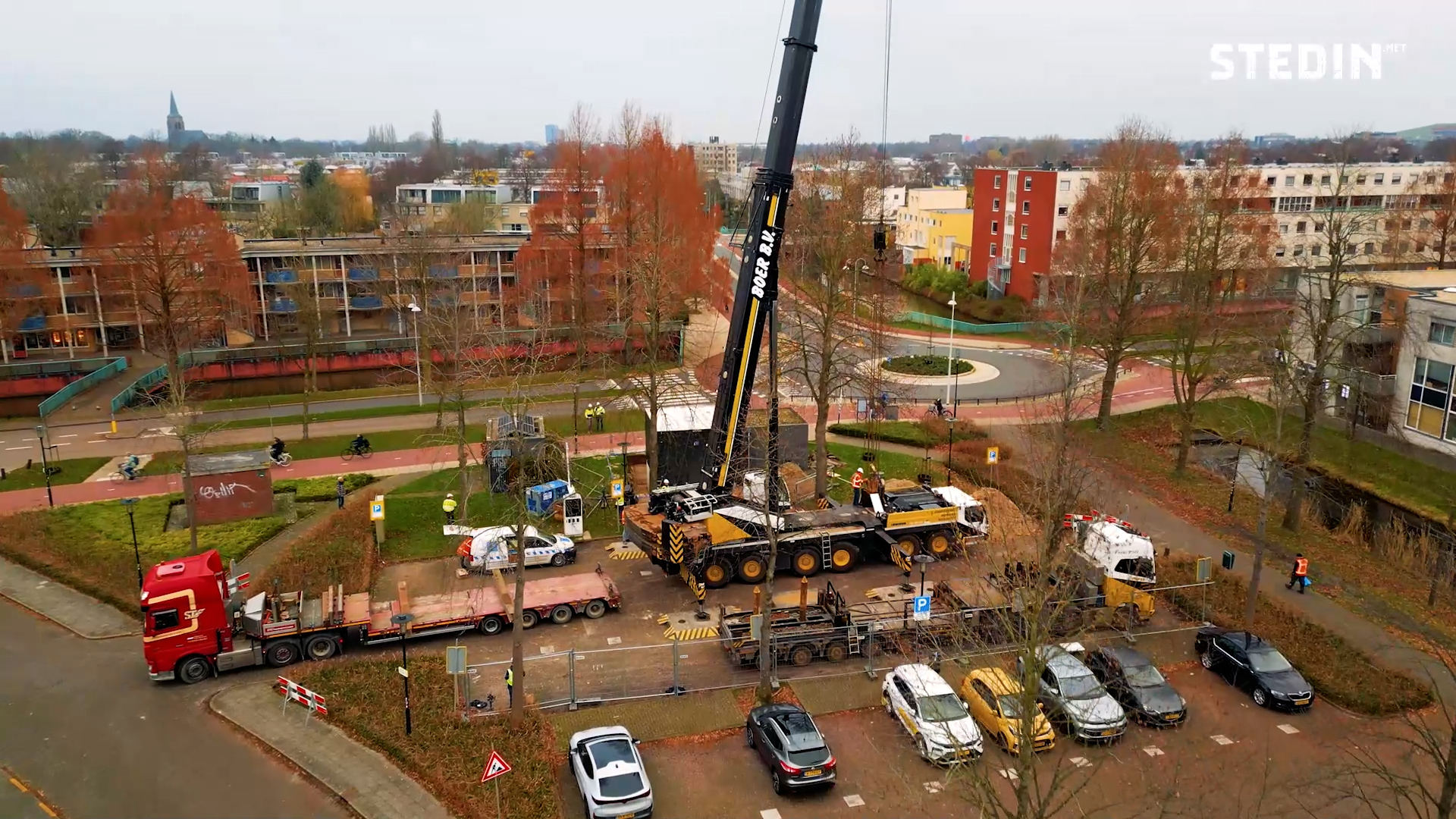
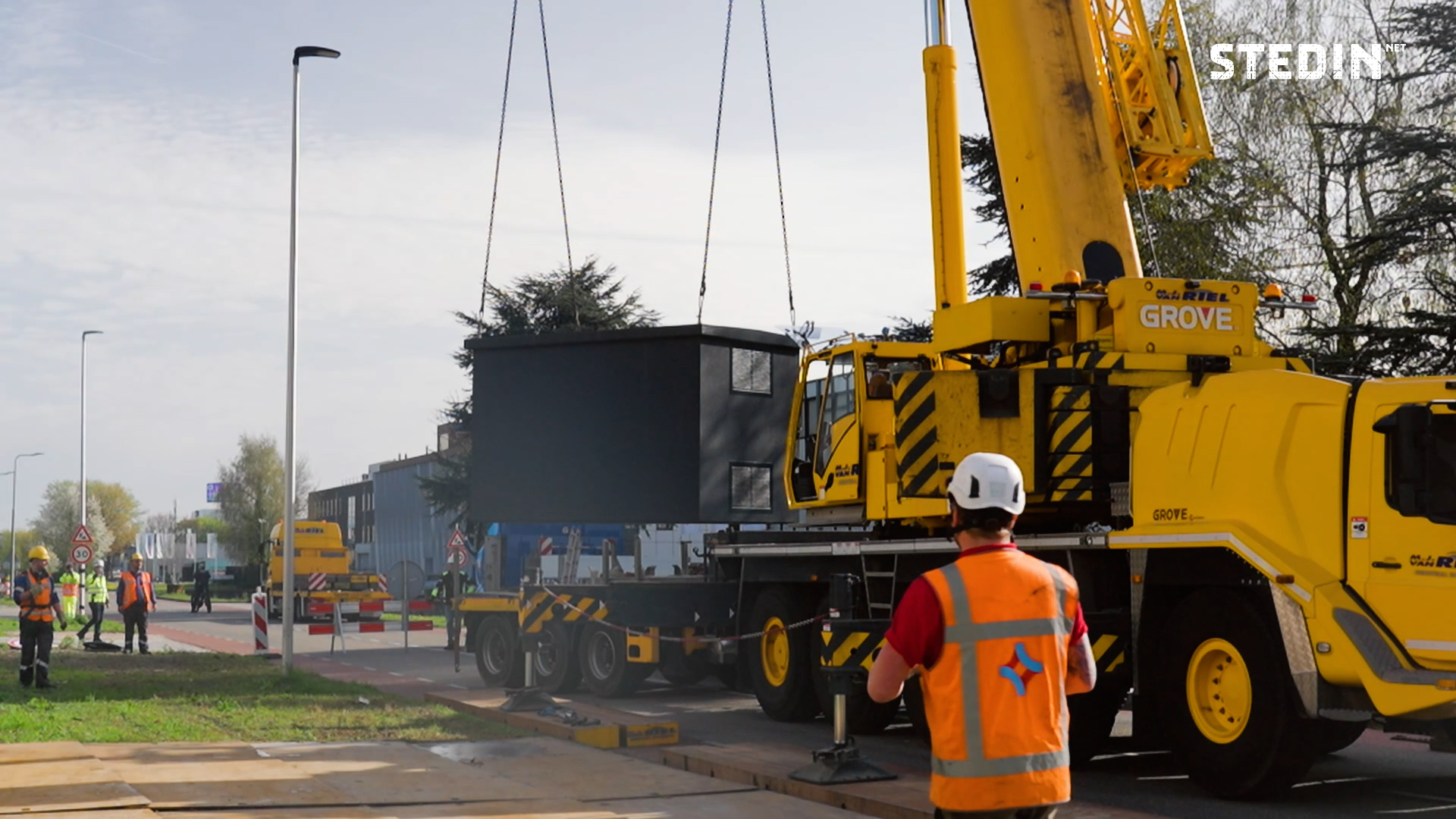
Zo versterken we het elektriciteitsnet van Amersfoort Met een verdeelstation van ruim 40 ton versterken we het elektriciteitsnet in de regio Amersfoort. In december werd het station, midden in een drukke omgeving, in twee delen op zijn plek gehesen met een 230 tons kraan.
-
In Vianen maken we het elektriciteitsnet klaar voor de toekomst Een dikkere kabel, een gestuurde boring en een nieuw middenspanningsstation. In Vianen bouwen we stap voor stap aan meer ruimte op het elektriciteitsnet.
-
Slimme trafo wissel verhelpt storing Begin dit jaar viel in Hardinxveld-Giessendam een belangrijke back-uptransformator uit. De stroomvoorziening bleef beschikbaar, maar het station had tijdelijk geen reserve meer. Dus gingen we aan de slag met een structurele oplossing.
-
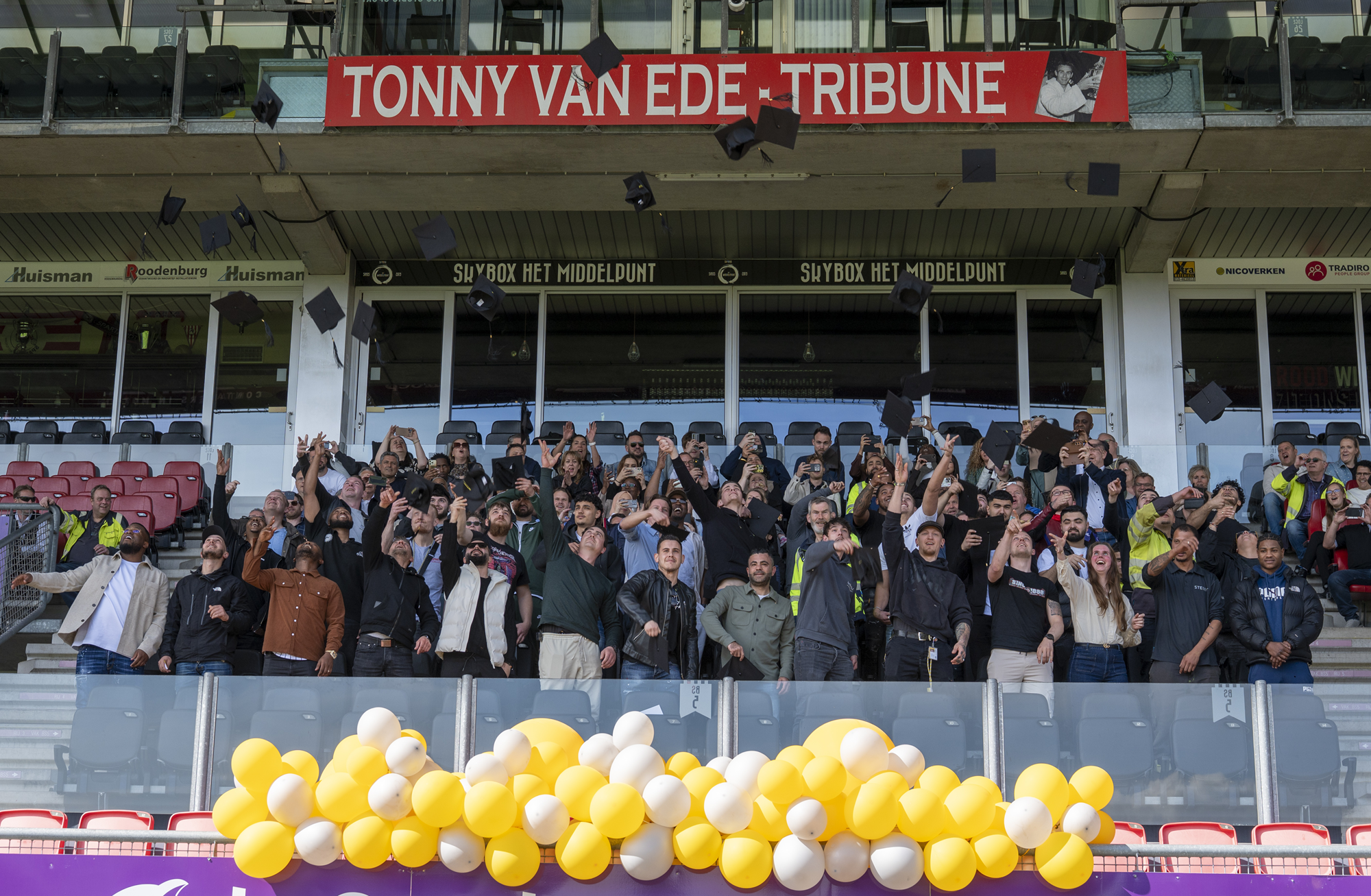
70 collega's ontvangen hun diploma van de Stedin Academie Op donderdag 16 april namen 70 collega’s hun diploma in ontvangst. Zij kregen hun dik verdiende mbo-diploma uitgereikt in de zon in het iconische Sparta-stadion Het Kasteel. Samen met familie, vrienden en collega’s vierden zij deze mooie mijlpaal.
-
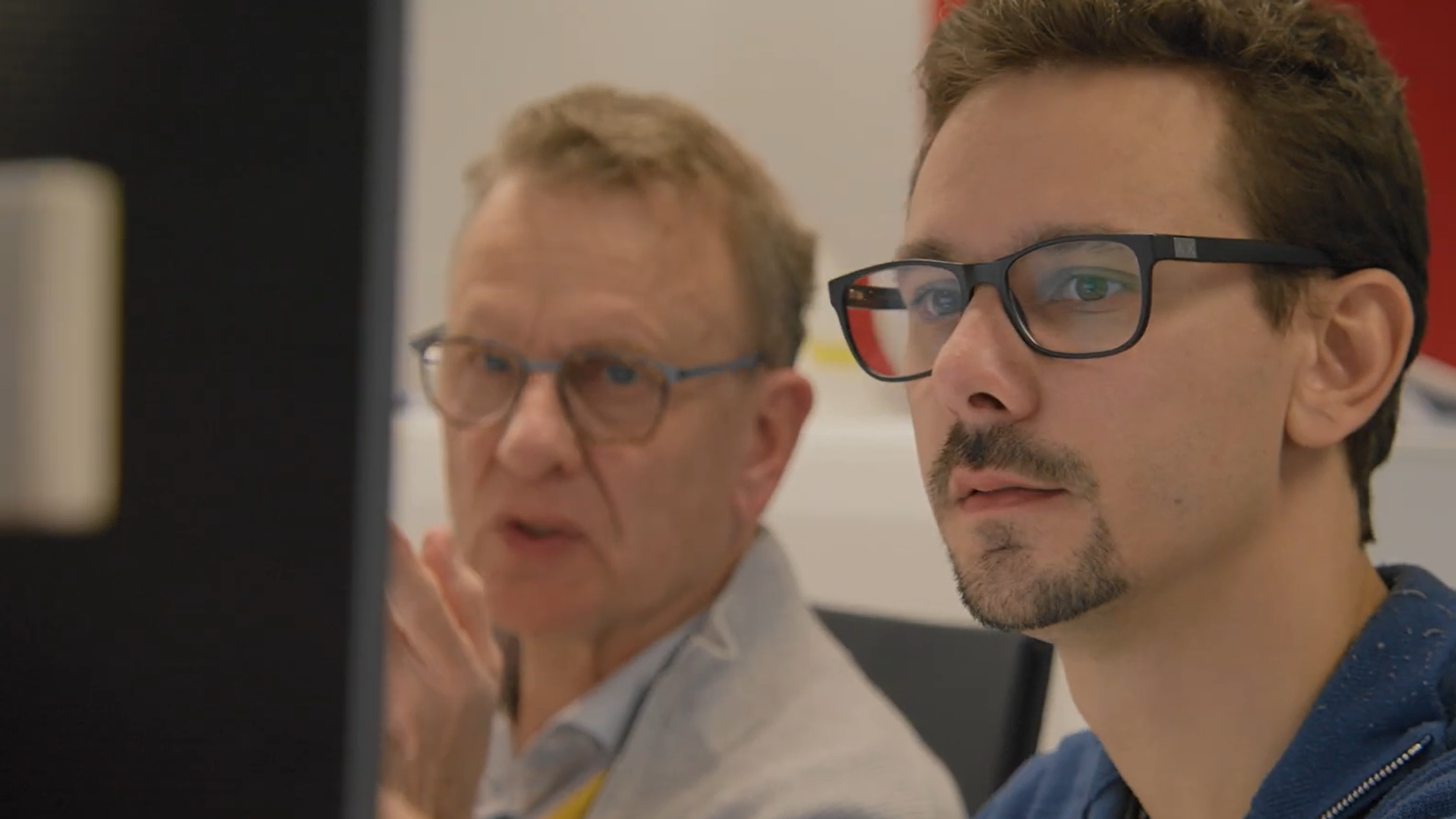
Hoe Yvo bijdraagt aan een veilig energienet Als technisch security expert werkt Yvo dagelijks aan de digitale veiligheid van het energienet. Hij vertelt hoe hij risico's beheerst, collega's adviseert en bijdraagt aan een betrouwbare energievoorziening voor miljoenen huishoudens en bedrijven.
-
Waarom het werk als monteur gas jou energie oplevert Wat maakt het werk als monteur gas zo bijzonder? Van vrijheid en afwisseling tot samenwerken in een hecht team. Jeffrey vertelt uit eigen ervaring waarom hij iedere dag met plezier aan het werk gaat.
-
Van twijfel naar doen: Vera werd monteur Vera wist het eigenlijk al langer: ze wilde met haar handen werken. Toch deed ze er eerst niets mee. De stap naar techniek voelde spannend en werd vroeger ook niet echt aangemoedigd thuis. Tot ze op een punt kwam waarop ze besloot haar eigen keuze te maken.
-
Project Engineer Jasper ziet de energietransitie terug op de kaart Jasper werkt als Project Engineer aan uitdagende projecten die bijdragen aan de energietransitie. Op de Maasvlakte ziet hij het resultaat van zijn werk letterlijk terug op satellietbeelden: zonnepanelen die glinsteren in de zon.
-
Installaties opleveren die echt werken Samen met vakmensen die projecten echt omarmen, werkt commissioning engineer Osrick elke dag met plezier aan mooie resultaten. Ontdek zijn verhaal.
-
Zo maakt Filipe het verschil in de energietransitie Als Project Engineer bij Stedin werkt Filipe aan het ontwerp van hoogspanningsstations en helpt hij het elektriciteitsnet klaar te maken voor de toekomst. Dat doet hij met een diverse groep collega's en veel flexibiliteit en vrijheid.
-
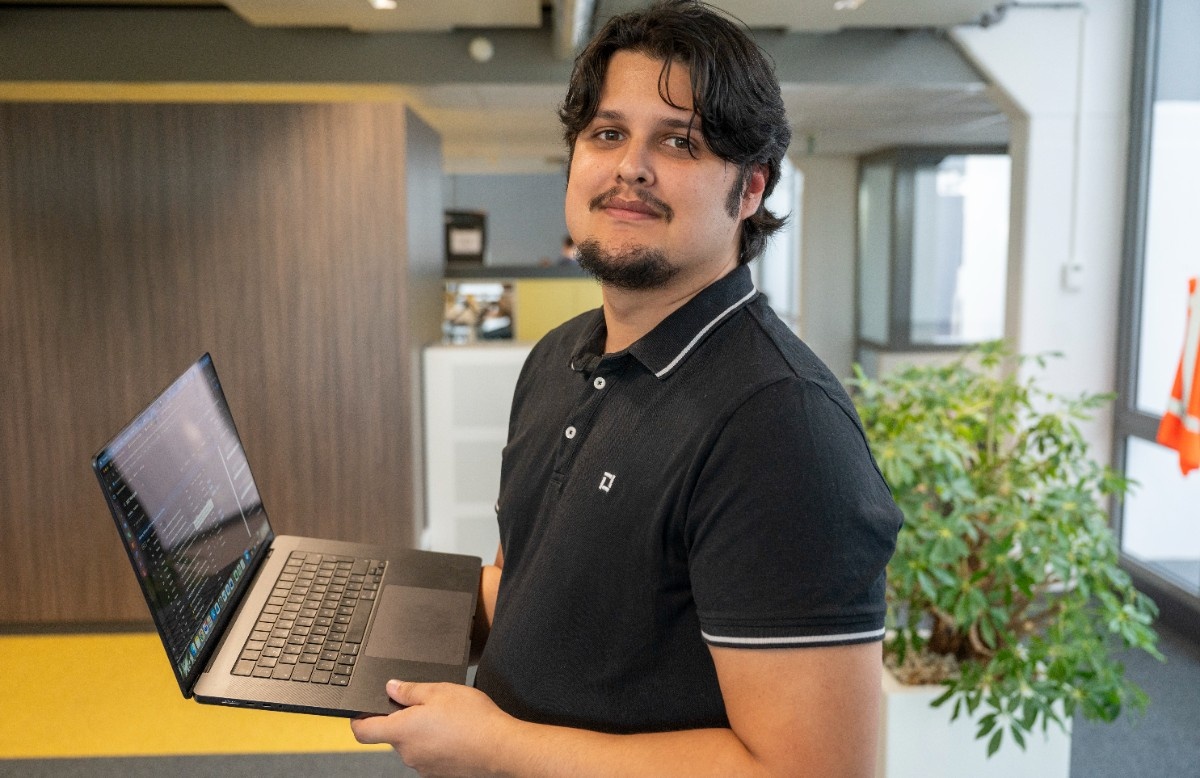
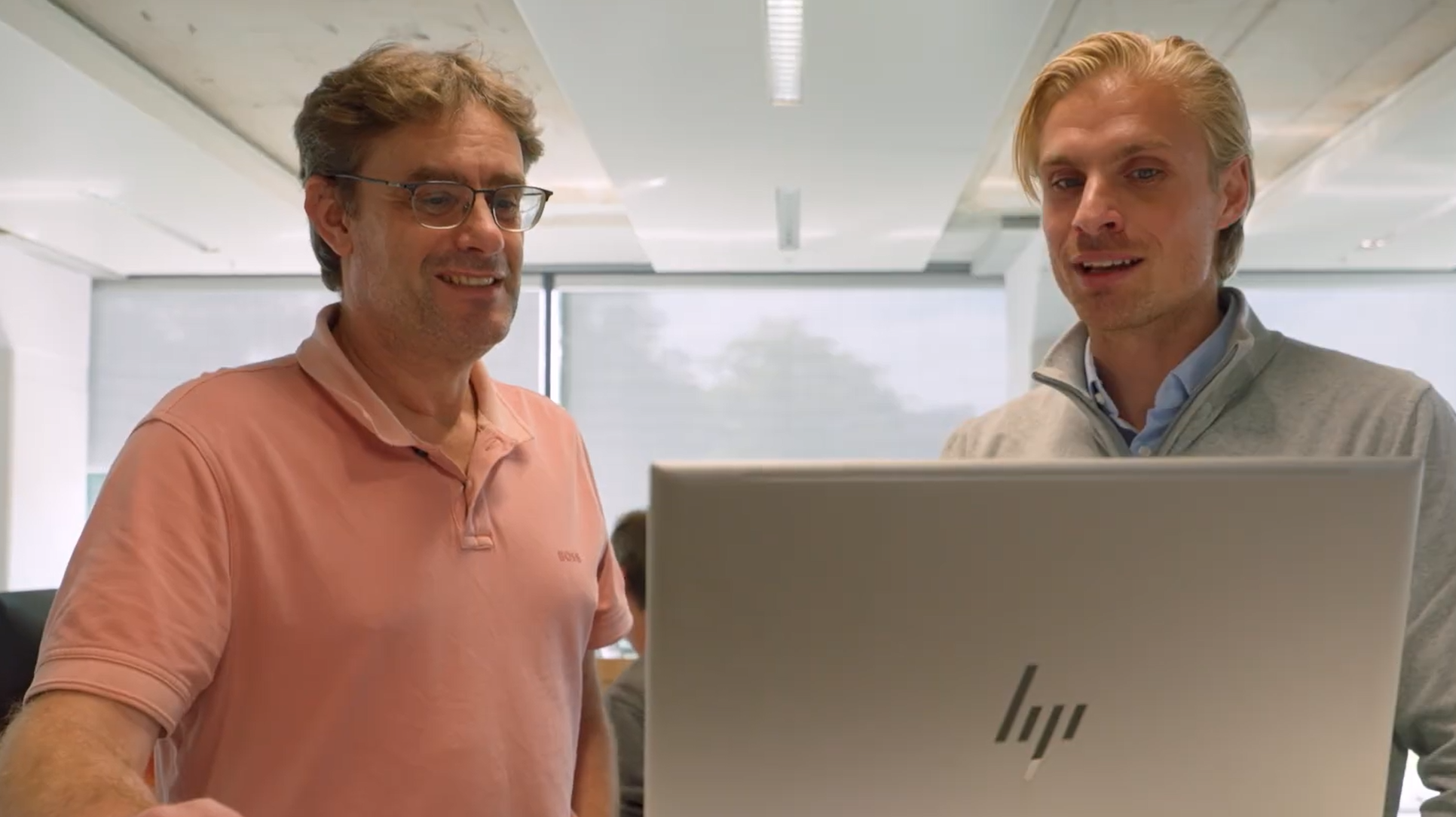
Edmar zorgt voor de software achter storing en herstel Als software developer bij Stedin onderhoudt Edmar de app die storingen en onderhoudsopdrachten op het energienet inzichtelijk maakt.
-
Van geen ervaring naar gasmonteur Geen ervaring als gasmonteur, maar wel zin om een vak te leren? Jopie, Daniel en Jan begonnen precies waar jij nu staat. Via de opleiding bij Stedin leerden ze het vak in de praktijk én op school.
-
Technisch Specialist Wesley, thuis op grote hoogte Hoe is het om te werken aan het hoogspanningsnet van Nederland? Wesley weet daar alles van. Als Technisch Specialist Kabels & Lijnen bij Stedin werkt hij op bijzondere locaties, samen met collega's die op elkaar kunnen rekenen.
-
Gas Samen zorgen we dat het gasnet betrouwbaar en veilig blijft, en maken we het klaar voor waterstof en andere duurzame oplossingen.
-
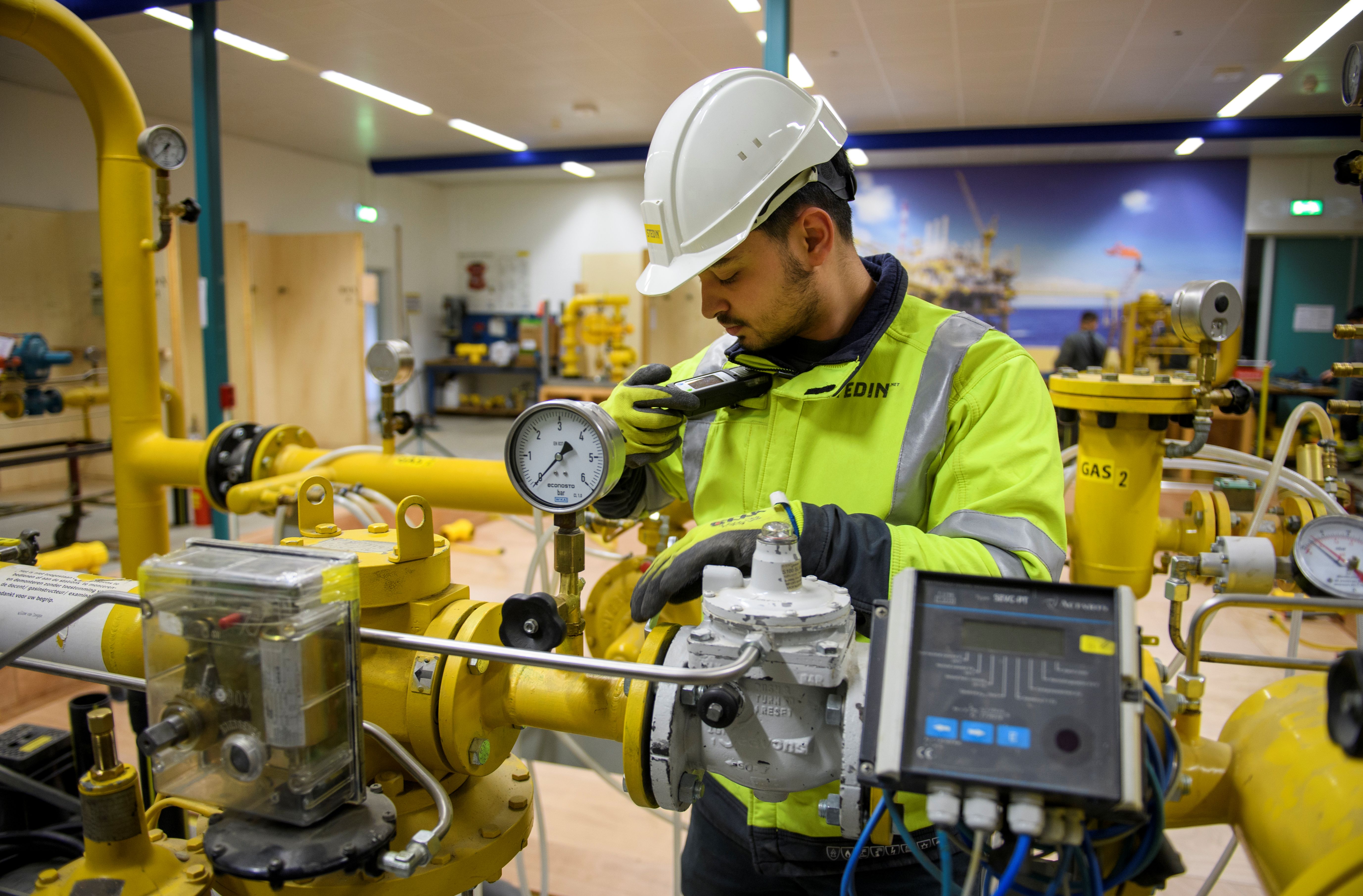
Op stap met Technisch Specialist Gas Dave Elke werkdag van onze collega Dave is anders. Van een kop koffie met collega’s tot het controleren van gasstations met de meetkoffer: Dave laat zien hoe veelzijdig zijn werk is.
-
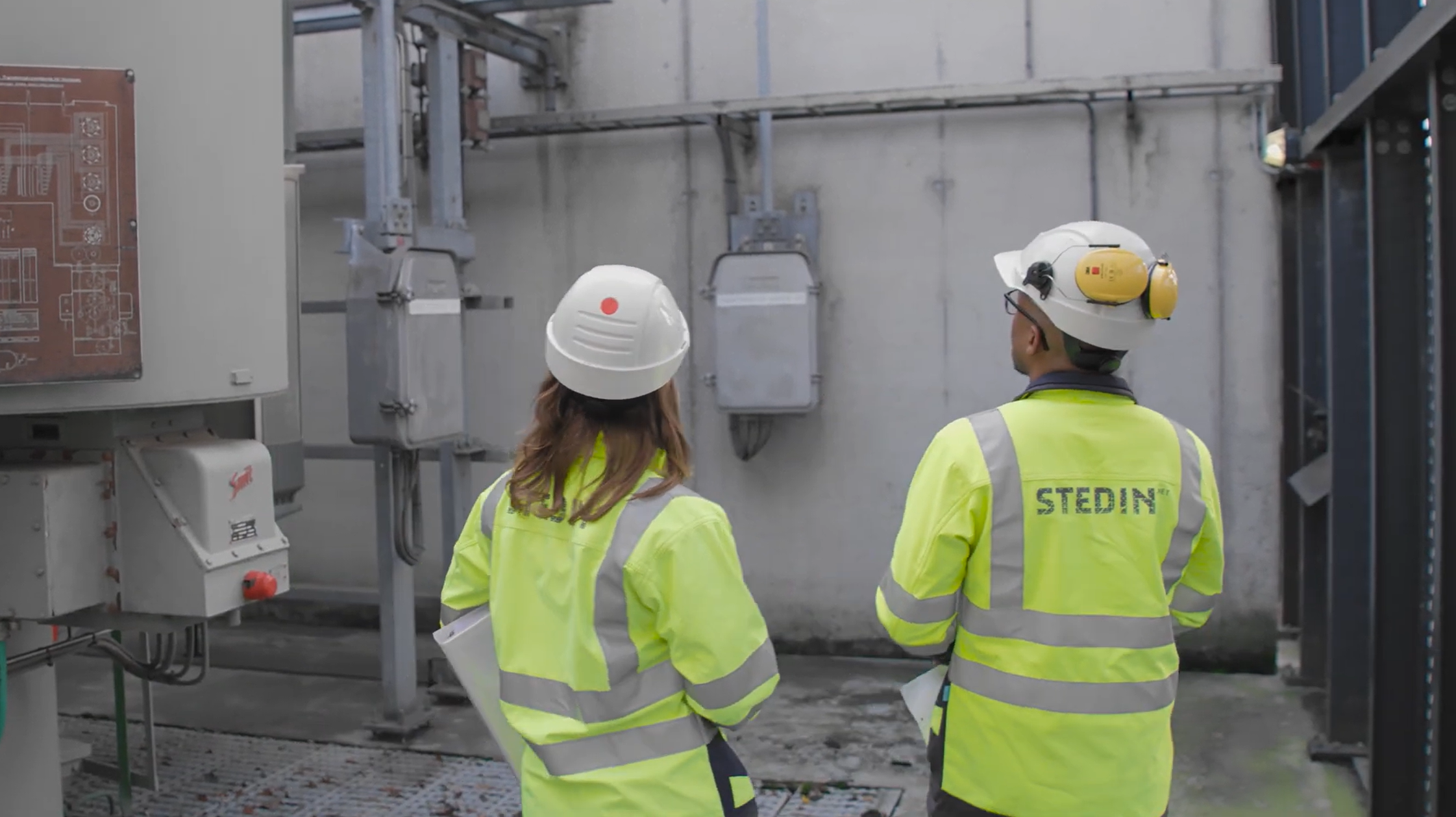
Hoe Ricky hoogspanningsinstallaties bestuurbaar en veilig houdt Benieuwd hoe het is om te werken als Technisch Specialist Meet- en Regeltechniek? Ricky werkt dagelijks aan de bestuurbaarheid en beveiliging van onze hoogspanningsinstallaties. Lees hoe hij bijdraagt aan een betrouwbaar energienet.
-


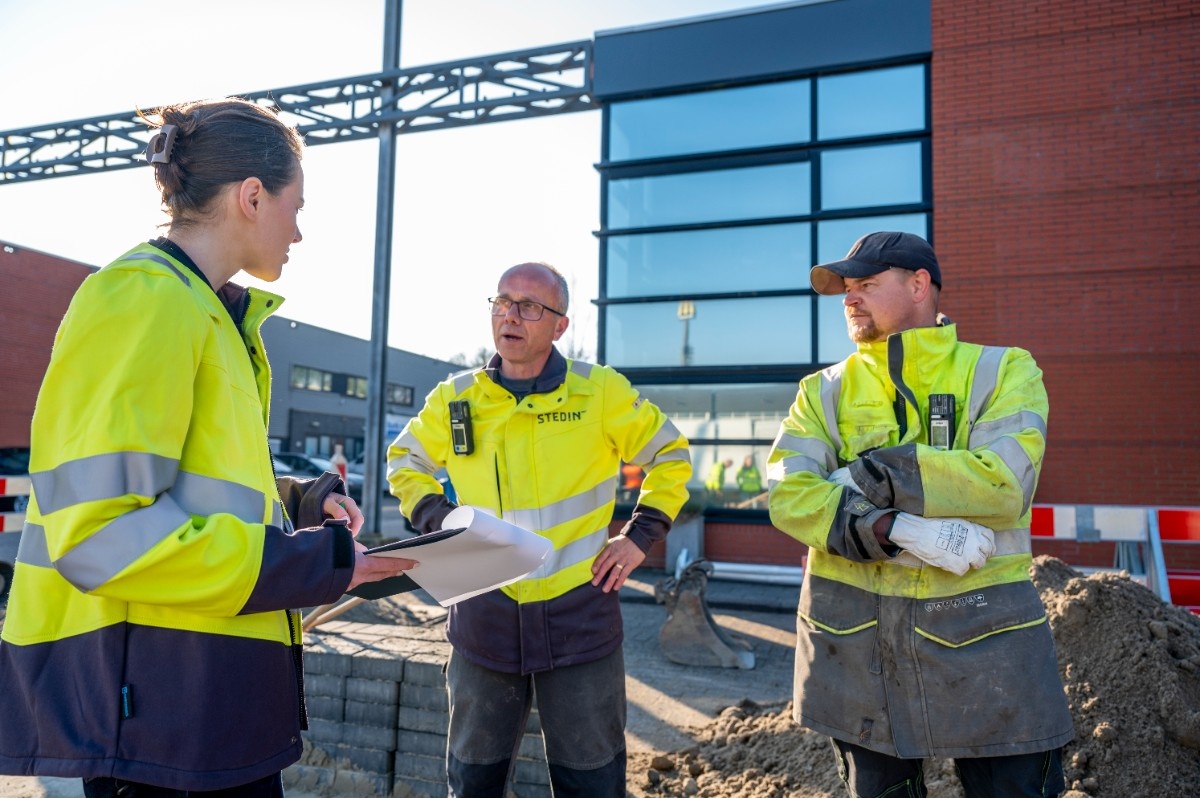

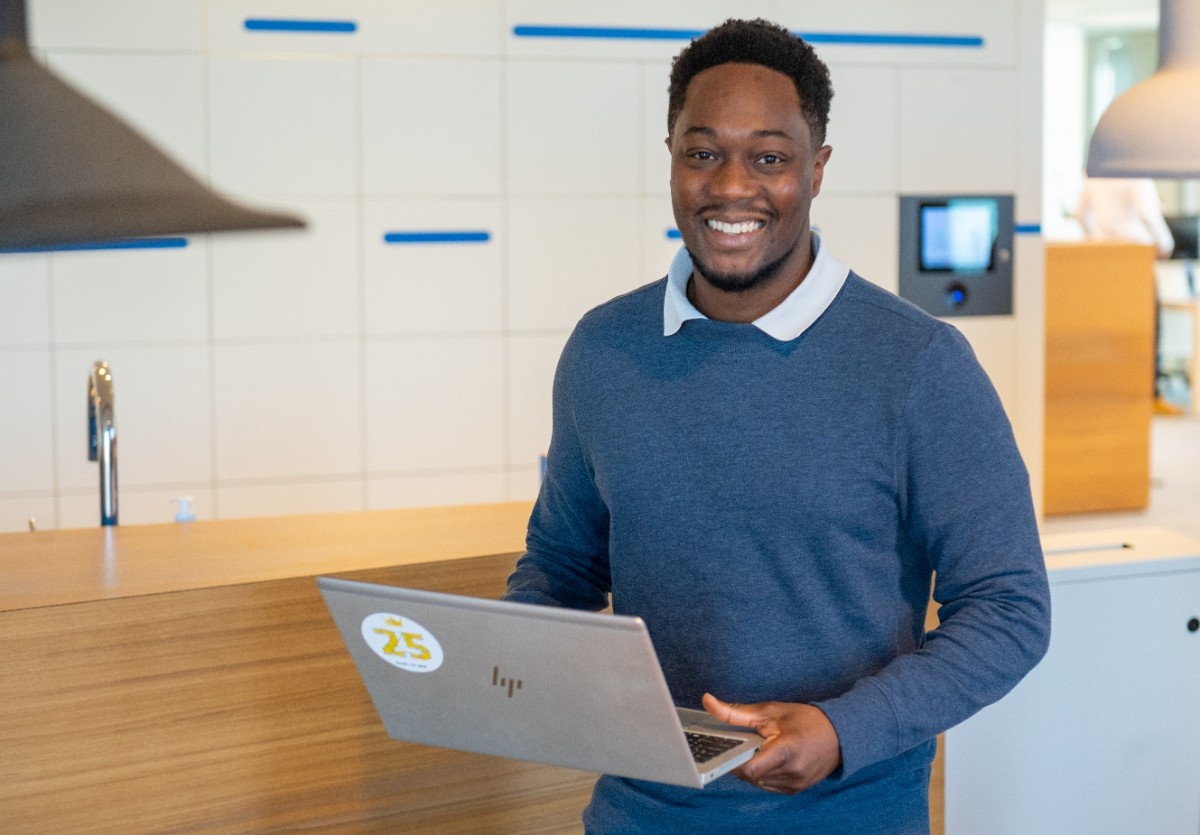
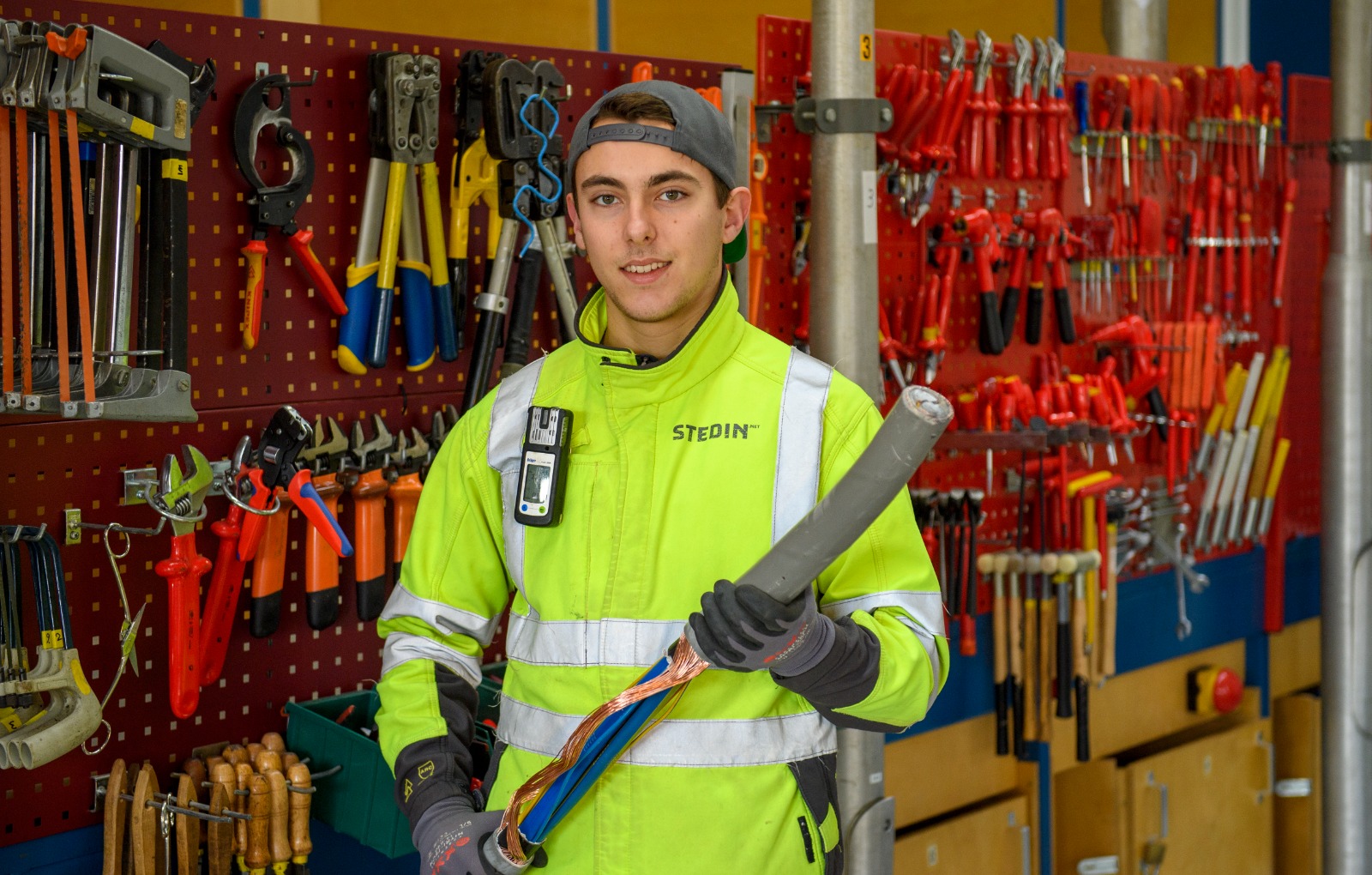
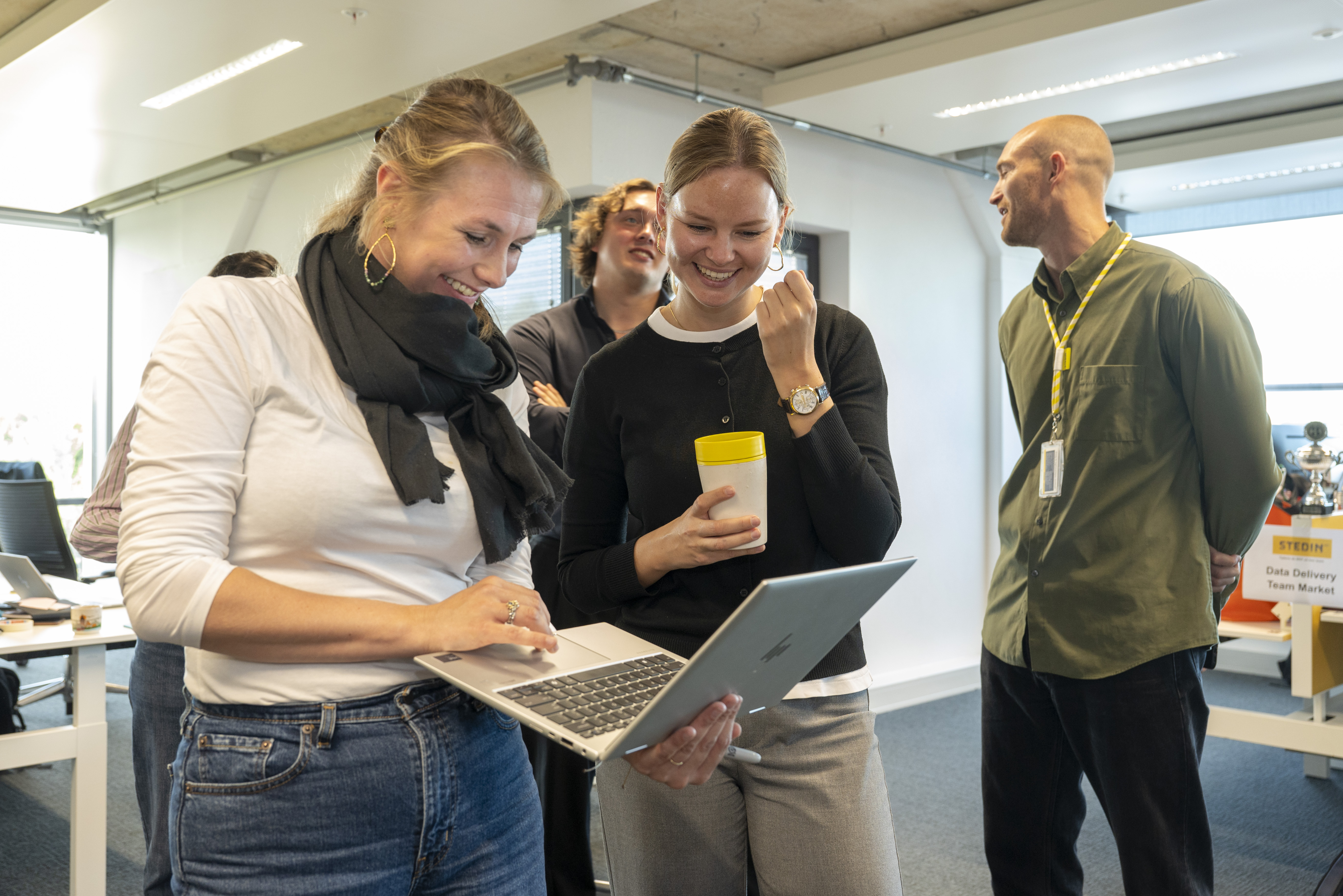
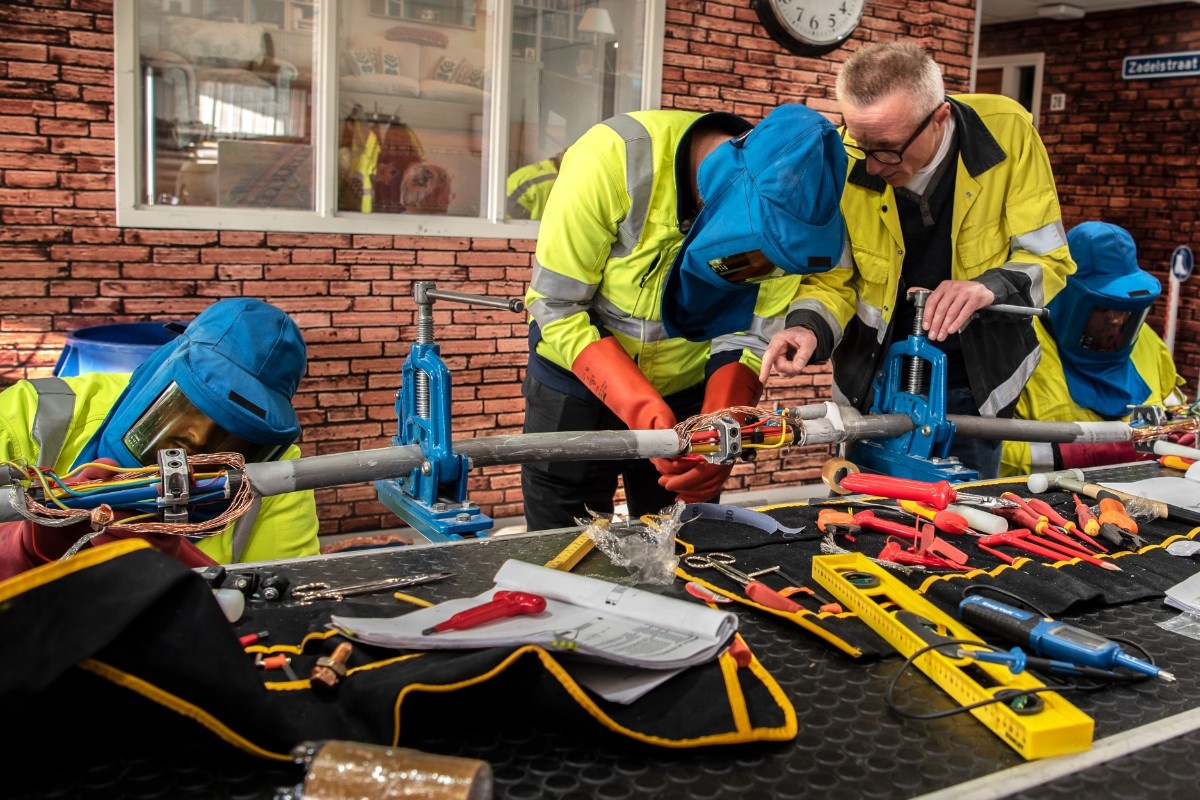
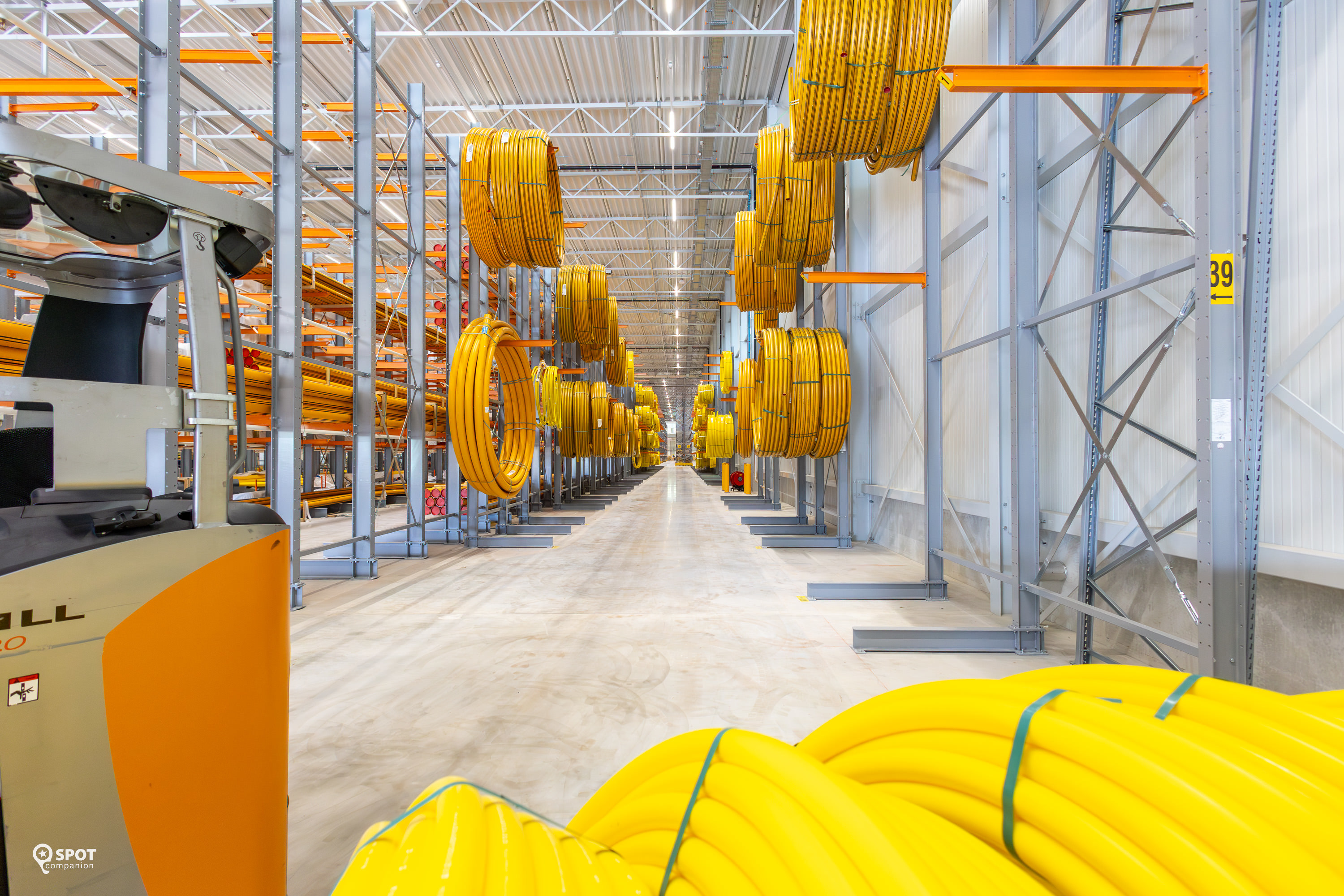
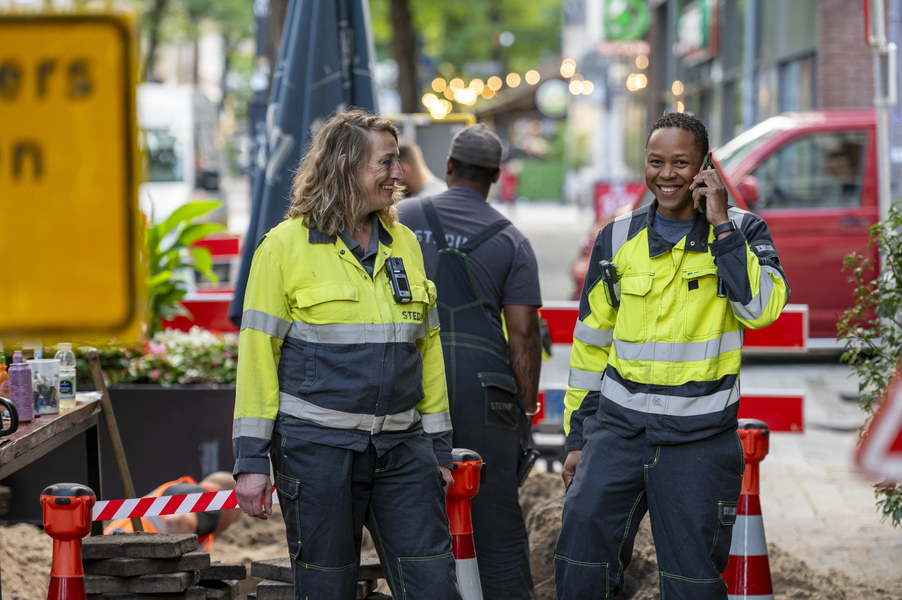
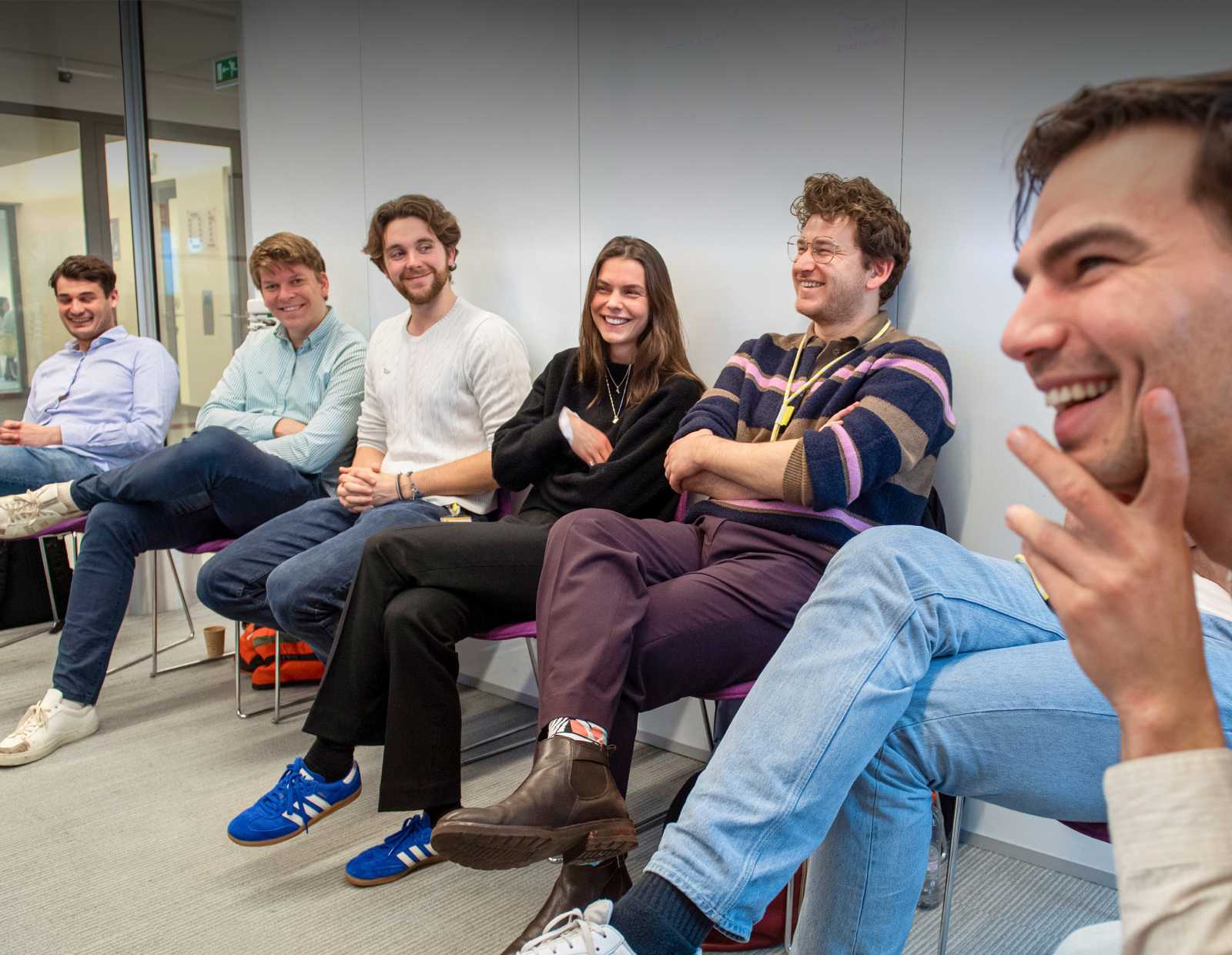

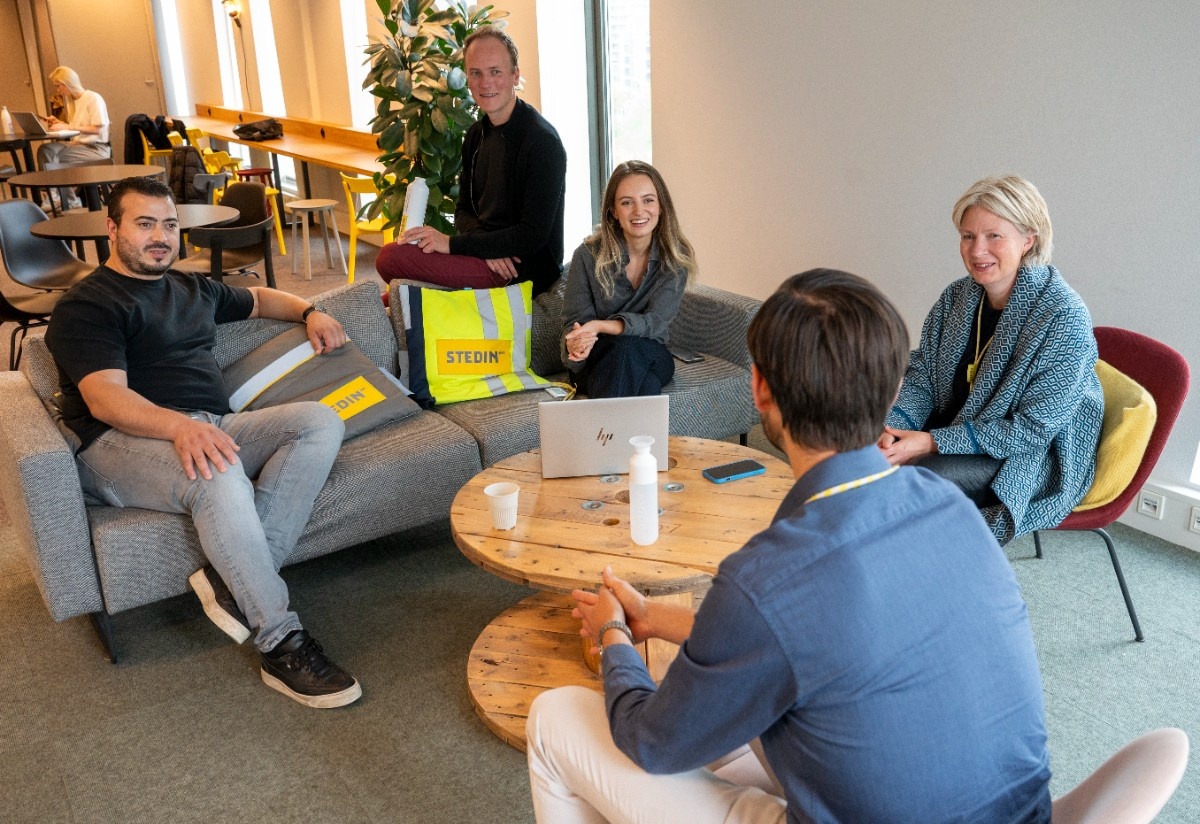

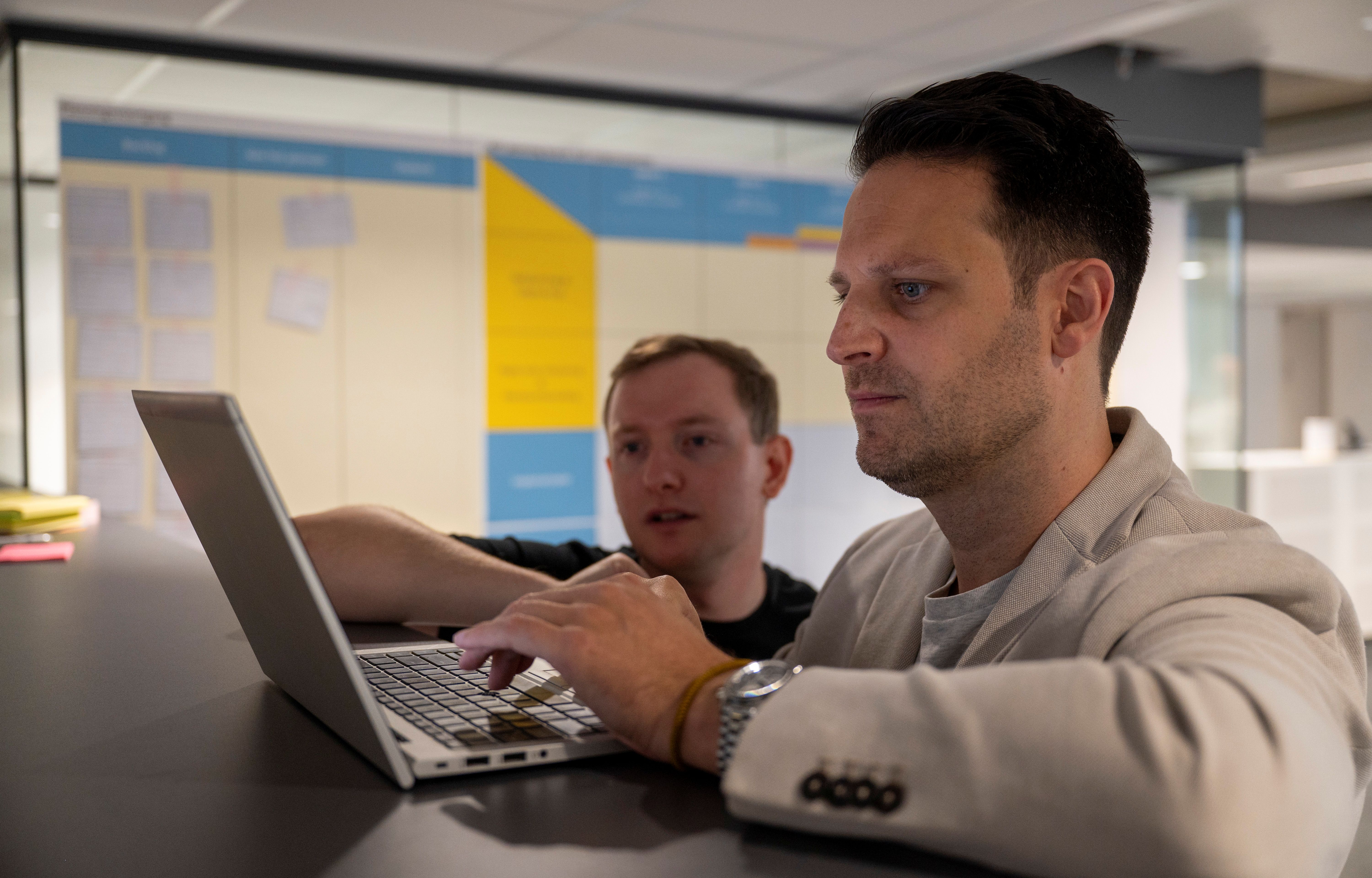
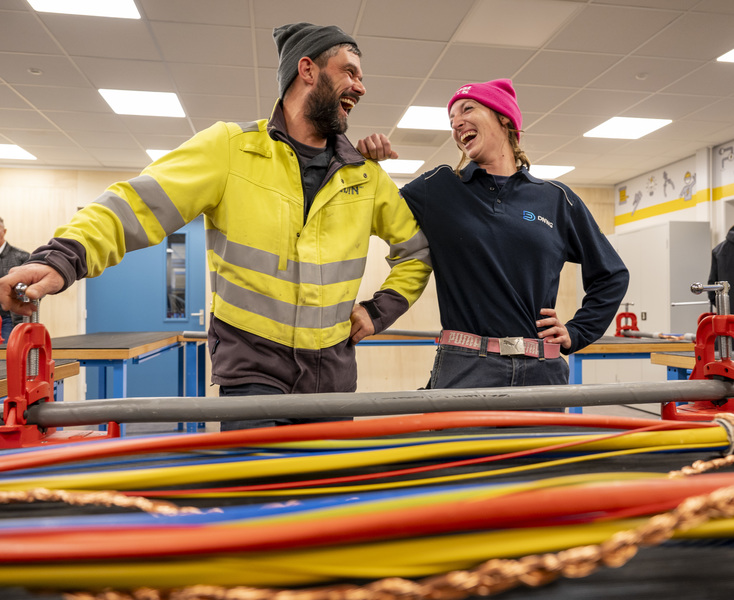
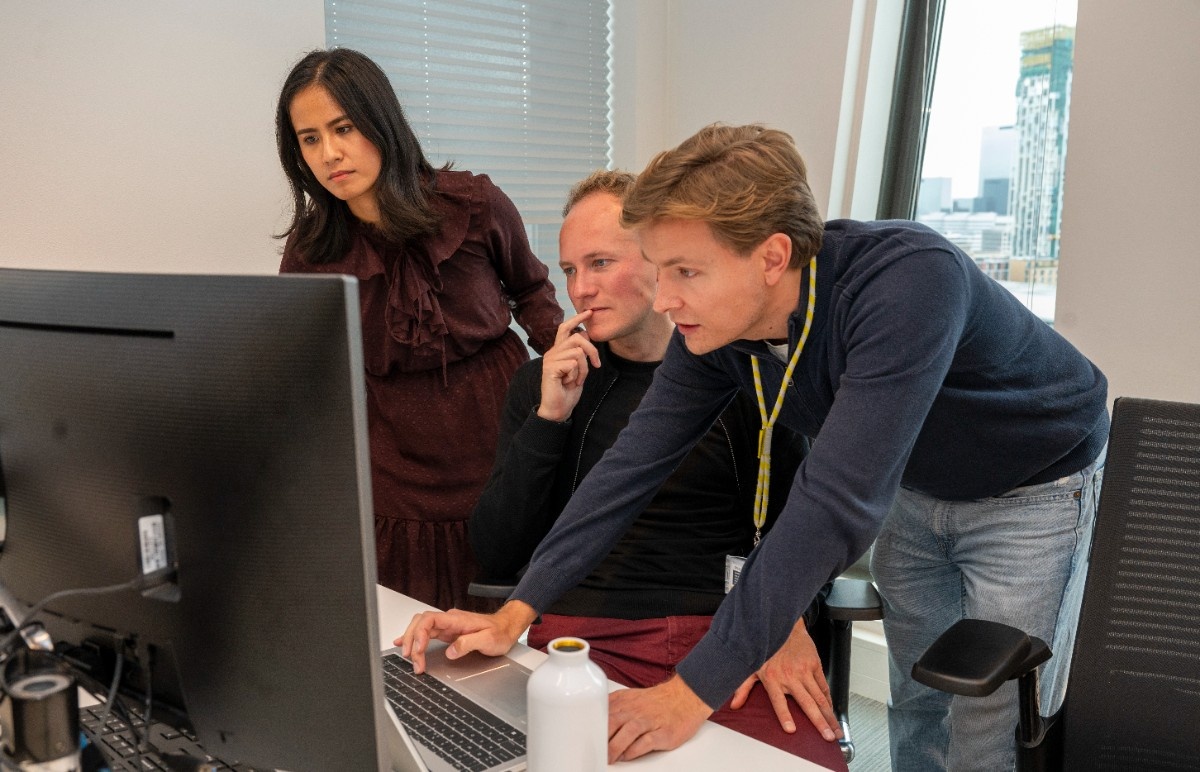




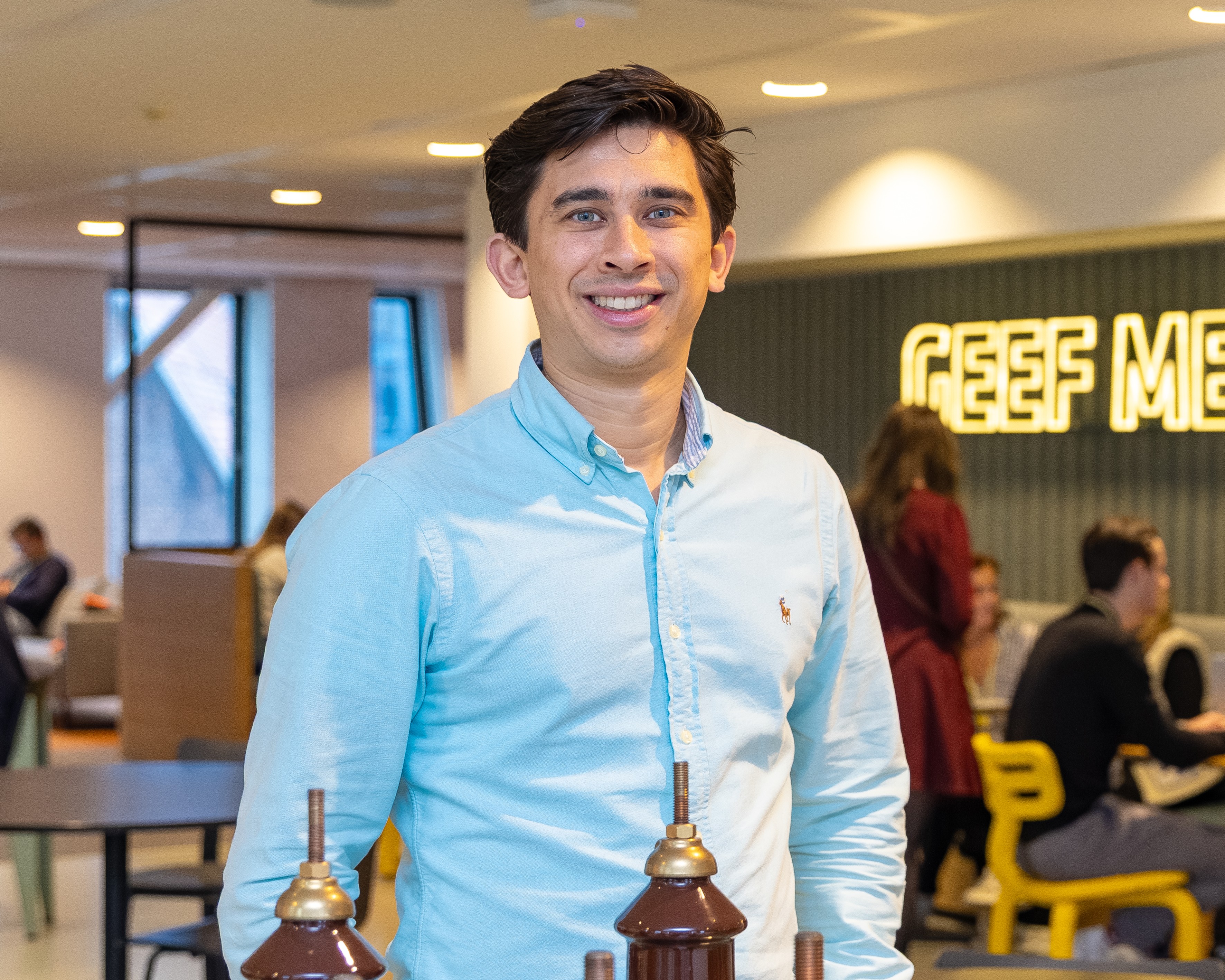
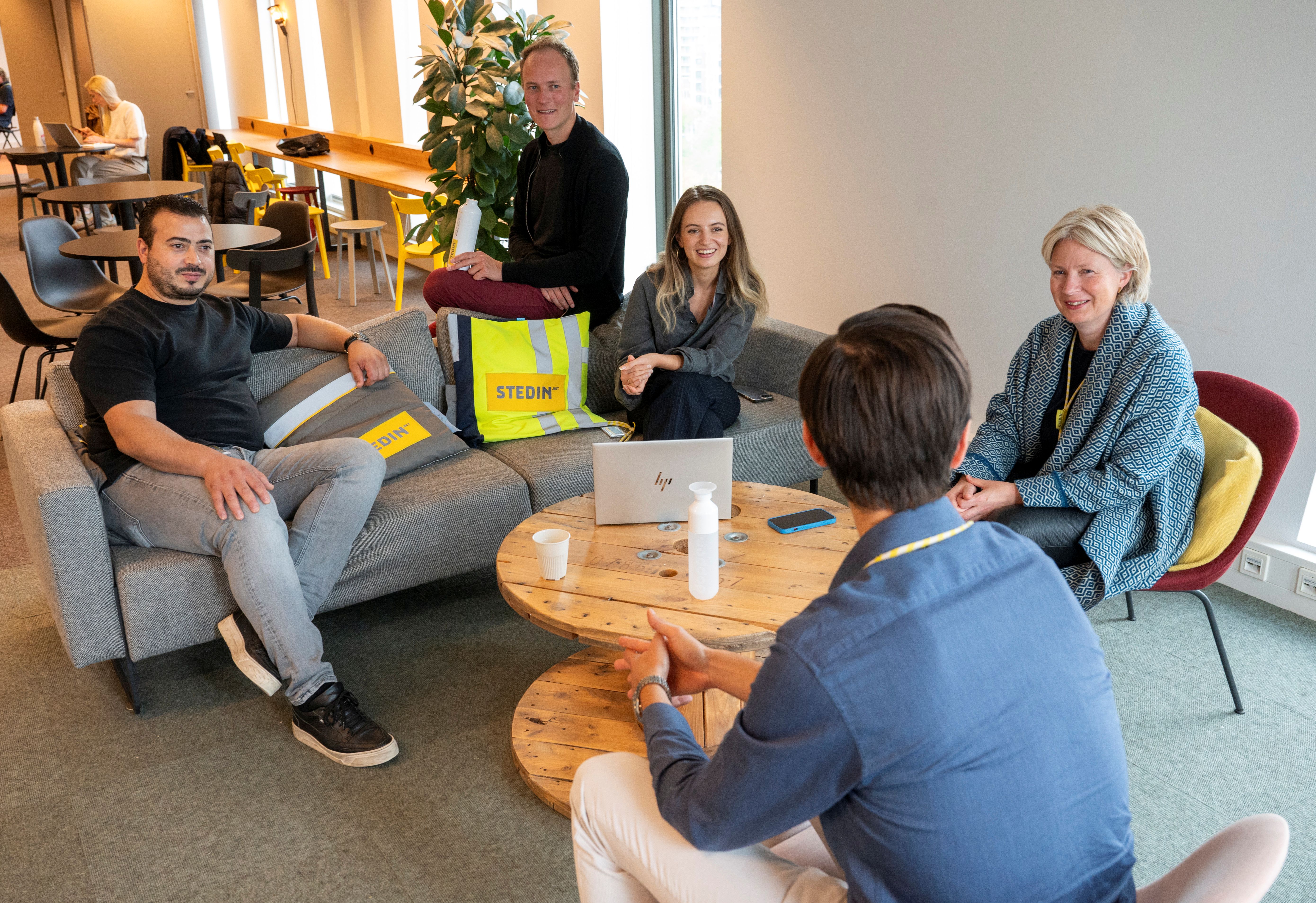
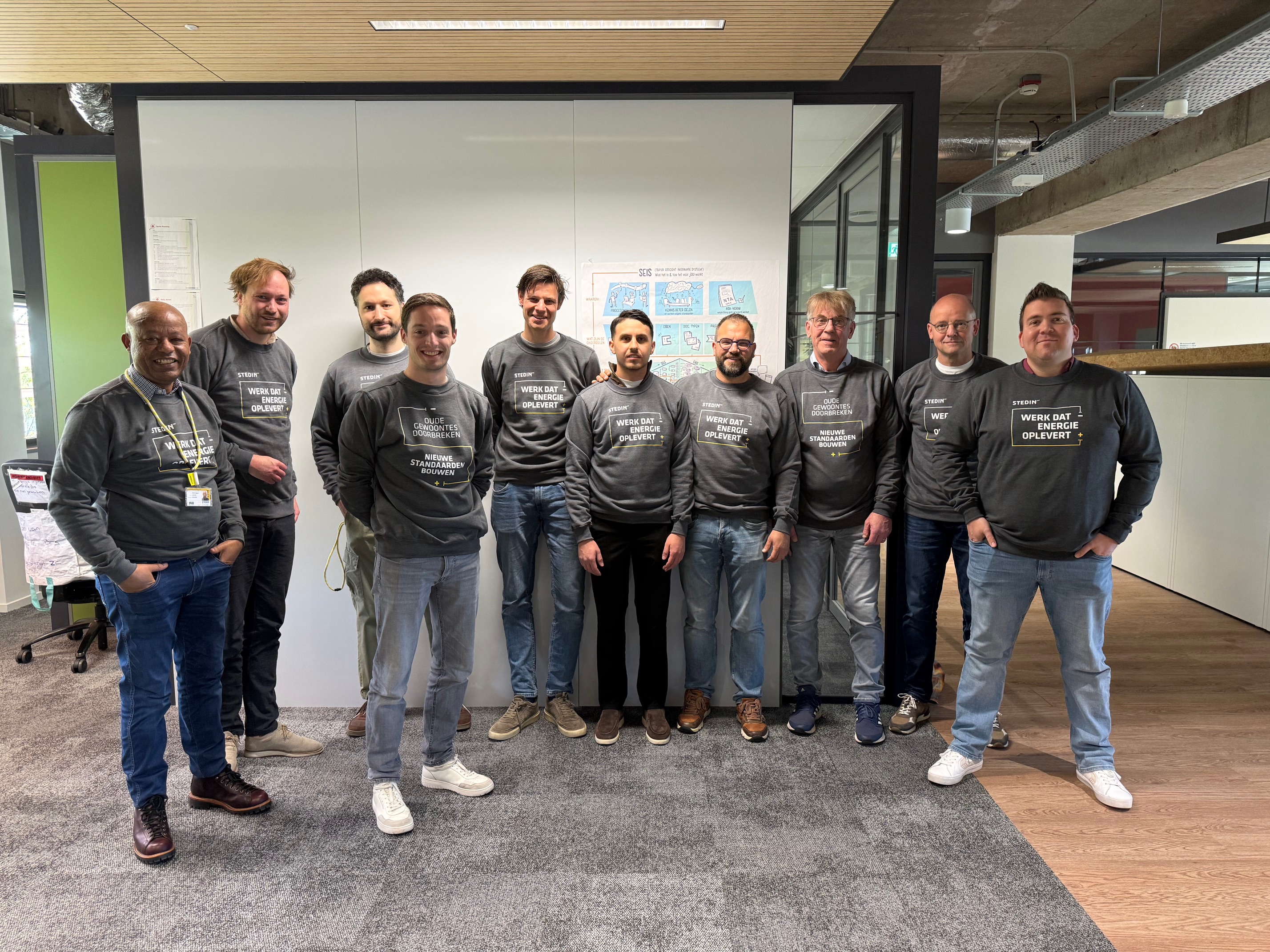
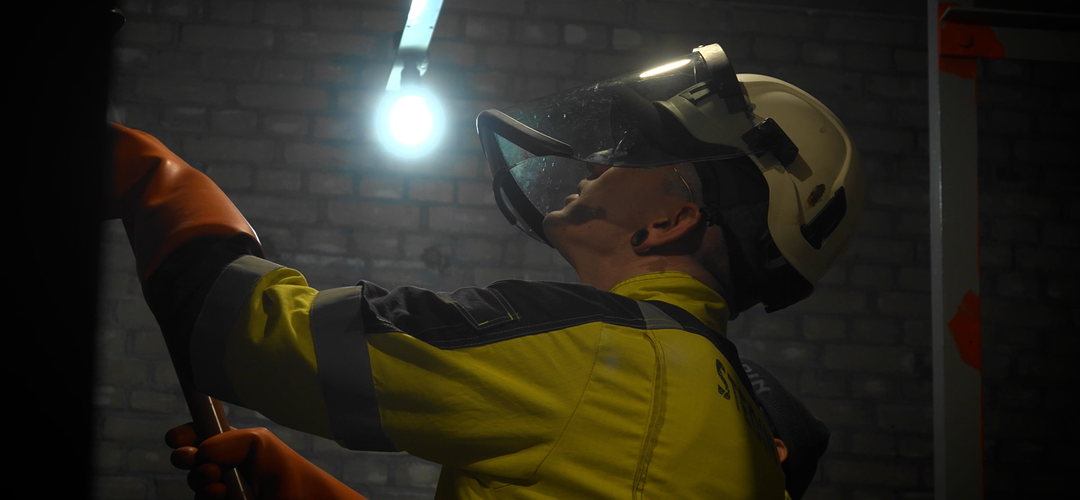
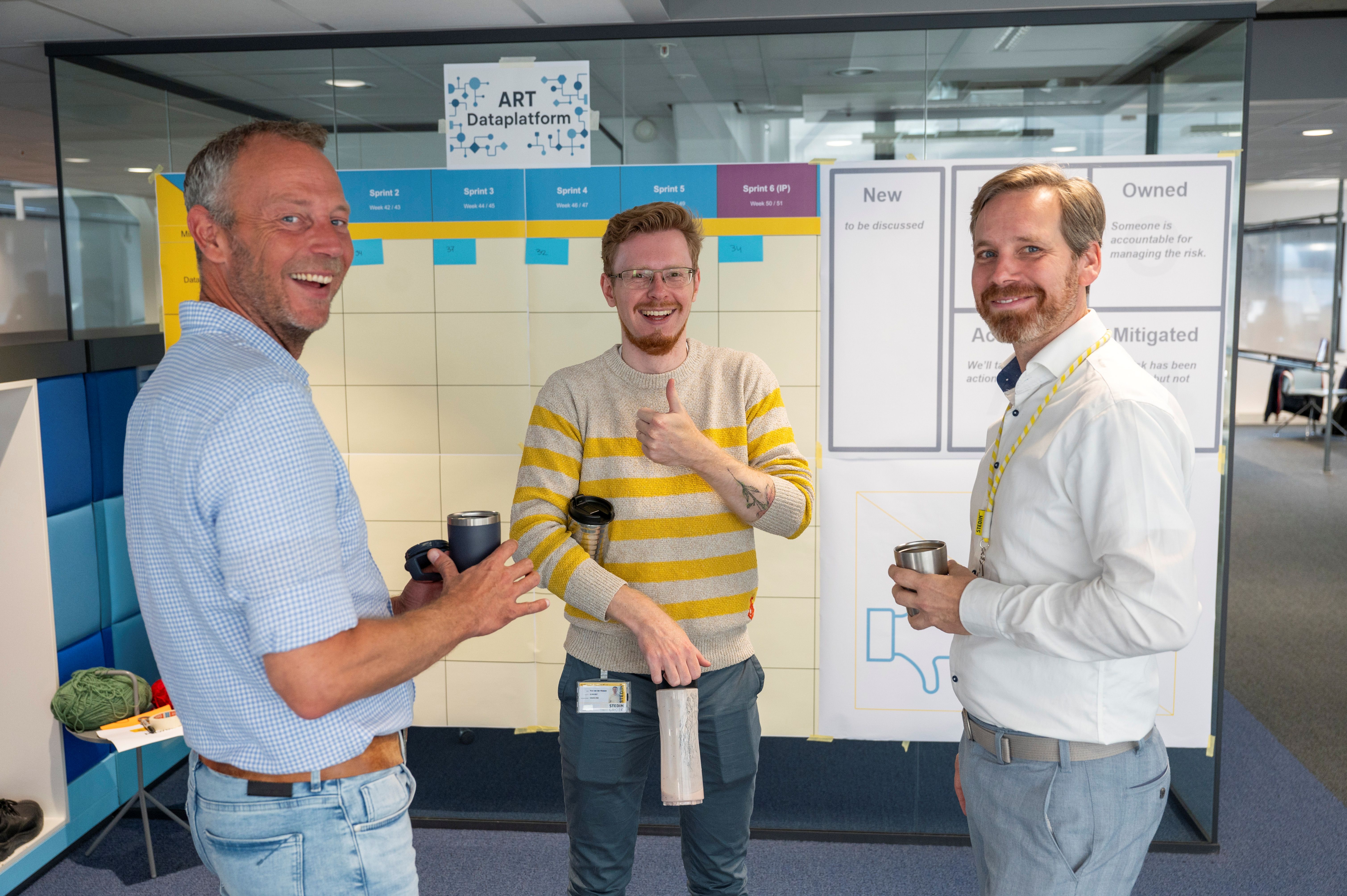
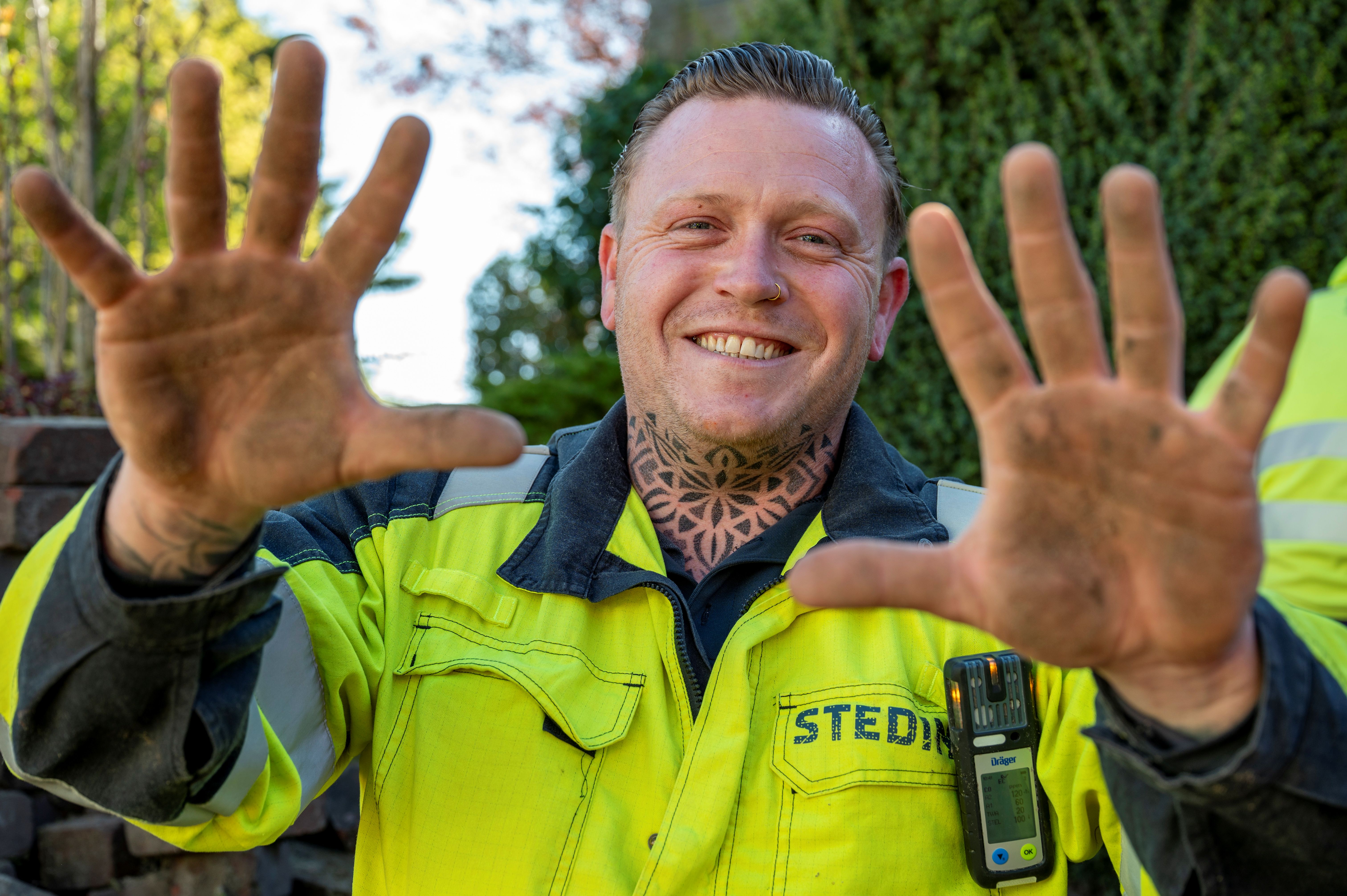
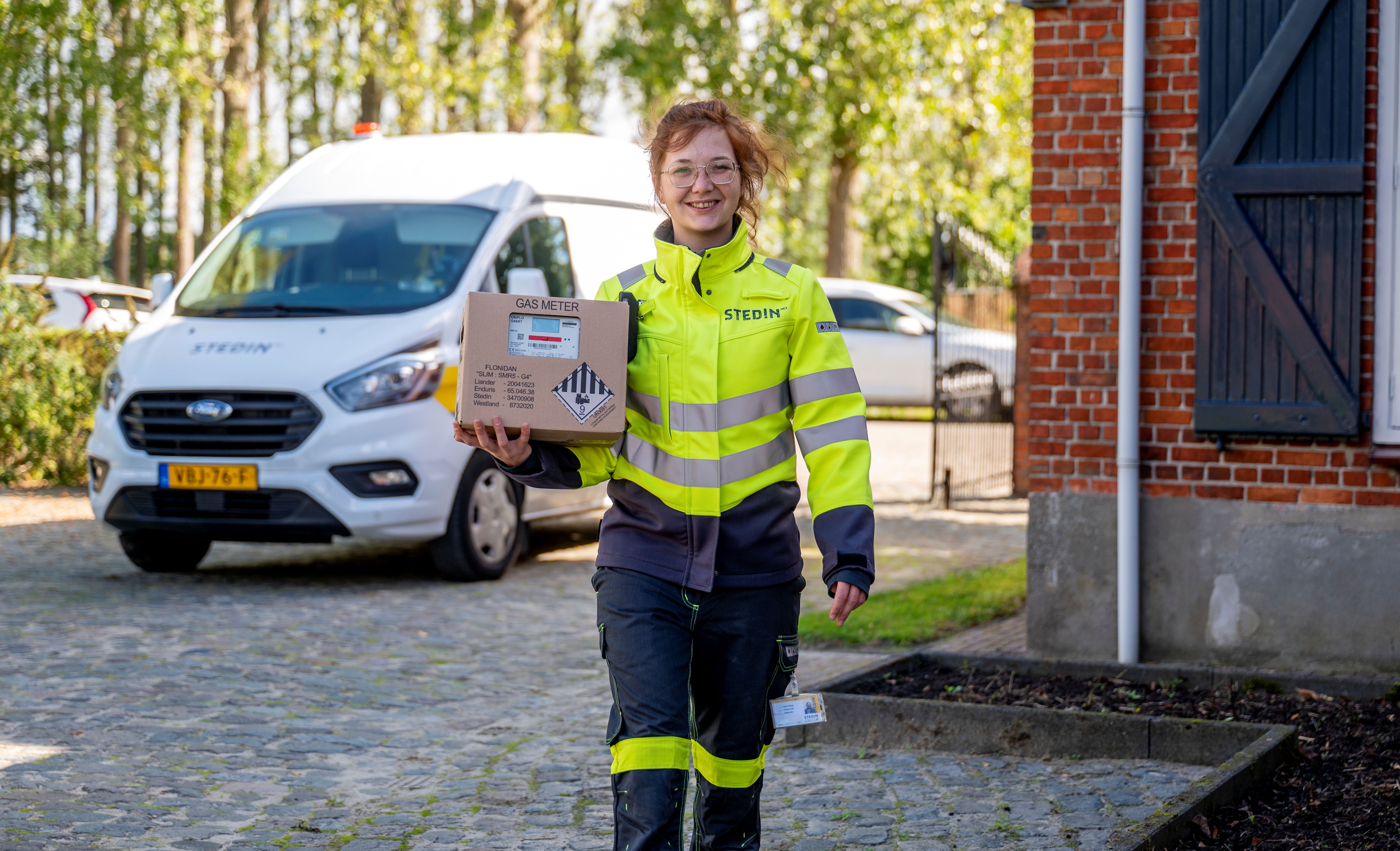
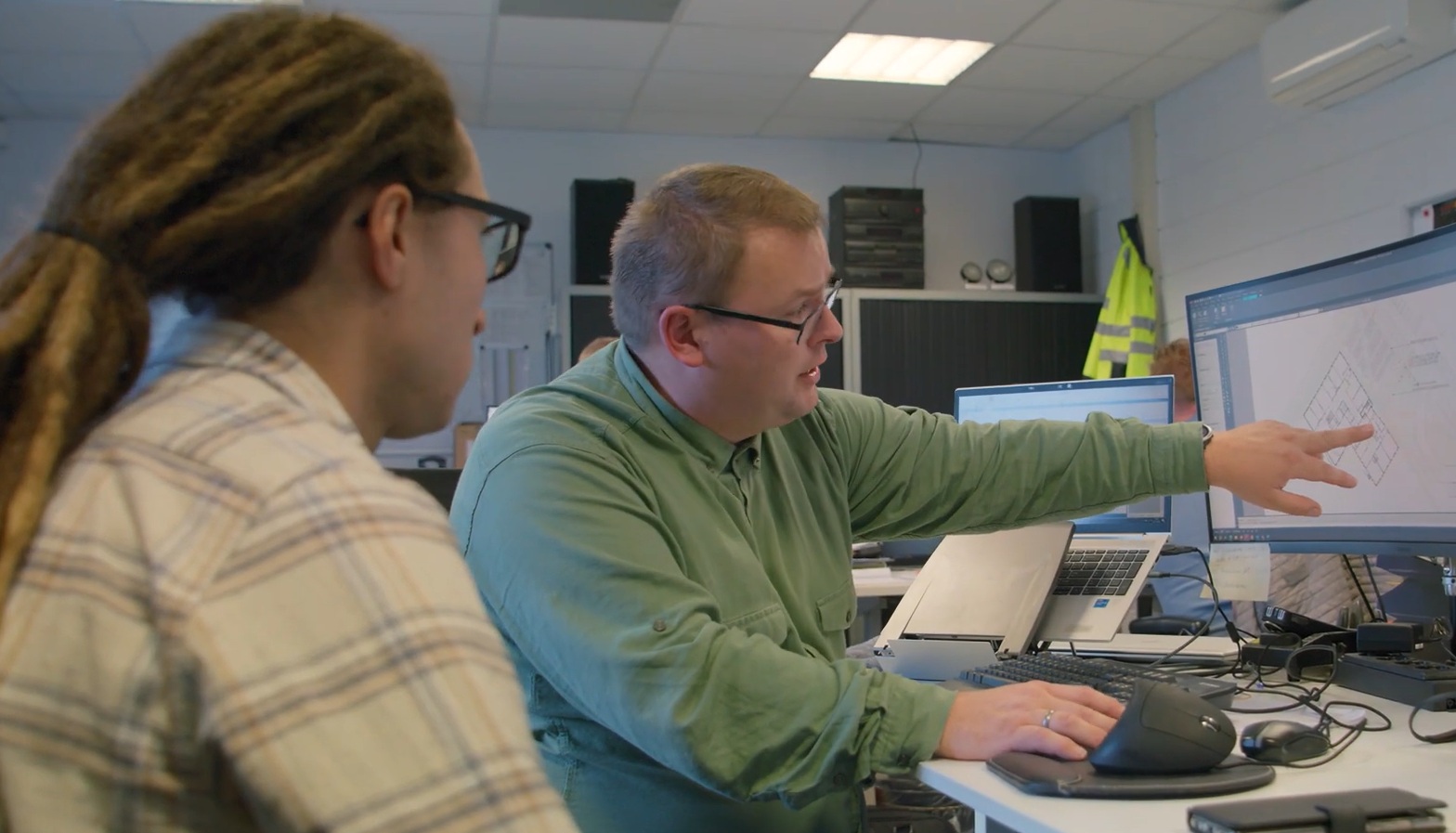
Multi item - (Section 8a)
CMS Enabled: Yes
Section usage: Add new
Suggested Use: Multi item content
Notes: Create a new version using the "Add new" menu. Both modules, Section 8a - Text, Section 8a - Copy and Section 8a - Media, can be edited.
Available Code Snippets:
- v1 - Section 8a - Text Reset: Used to reset the copy back to the default style and lorem ipsum copy.
- v1 - Section 8a - Copy Reset: Used to reset the copy back to the default style and lorem ipsum copy.
Heading Text 123
Heading text test 01
Lorem ipsum dolor sit amet, consectetur adipiscing elit, sed do eiusmod tempor incididunt ut labore et dolore magna aliqua. Lorem ipsum dolor sit amet, consectetur adipiscing elit, sed do eiusmod.
Heading text test 02
Lorem ipsum dolor sit amet, consectetur adipiscing elit, sed do eiusmod tempor incididunt ut labore et dolore magna aliqua. Lorem ipsum dolor sit amet, consectetur adipiscing elit, sed do eiusmod.

Multi item - (Section 9)
CMS Enabled: Yes
Section usage: Add new
Suggested Use: List of links to user's chosen pages using the Content Page Display module.
Notes: Create a new version using the "Add new" menu. The Content Page Display module can be edited. It is advisable to create a generic version where it can be placed on multiple pages. The heading copy is in "Section 9 - Heading" and the heading field in the Content Page Display module is NOT in use.
Available Code Snippets:
- v1 - Section 9 - Heading Reset: Used to reset the heading copy back to the default style and lorem ipsum copy.
Lorem ipsum dolor
Multi item - (Section 9a)
CMS Enabled: Yes
Section usage: Add new
Suggested Use: List of links to user's chosen pages using multiple Callout Action Link modules.
Notes: Create a new version using the "Add new" menu. 2 links will be created by default. For any additional modules, create a new Callout Action Link. Each Callout Action Link module can be edited. The heading copy is in "Section 9a - Heading".
Available Code Snippets:
- v1 - Section 9a - Heading Reset: Used to reset the heading copy back to the default style and lorem ipsum copy.

Multi item - (Section 10)
CMS Enabled: Yes
Section usage: Add new
Suggested Use: Multi item content
Notes: Create a new version using the "Add new" menu. Both modules, Section 10 - Text, Section 10 - Copy and Section 10 - Media, can be edited.
Available Code Snippets:
- v1 - Section 10 - Text Reset: Used to reset the copy back to the default style and lorem ipsum copy.
- v1 - Section 10 - Copy Reset: Used to reset the copy back to the default style and lorem ipsum copy.
Heading Text
Lorem ipsum dolor sit amet, consectetur adipiscing elit. Phasellus vel arcu posuere, interdum sem sed, gravida ipsum.

Lorem ipsum dolor sit amet, consectetur adipiscing elit. Phasellus vel arcu posuere, interdum sem sed, gravida ipsum.
Multi item - (Section 11)
CMS Enabled: No
Section usage: Use Existing
Suggested Use: 4 related content links
Notes: Use this section when you want the related content to feature pages tagged with the "Related Content" CPM channel, randomly ordered. Note that if the page featuring this section has any job data mappings applied, related content will only show pages from the channel that match those mappings. To add a content page (or offsite content page) to this feed, tag it with the "Related Content" CPM Channel.
Interessant voor jou?
-
Salaristool
-
-
-
-
-
Leren en ontwikkelen Van stage tot traineeship, van innovatie tot kennisdeling, ontdek alle mogelijkheden om te groeien.
-
Meet- & Regeltechniek In de wereld van meet- & regeltechniek zorgen we ervoor dat het energienet precies doet wat het moet doen. We werken aan hoogspanningsstations, automatisering en besturing van installaties die Nederland draaiende houden.
-
Hoe houd je stalen gasleidingen veilig? Lees alles over Kathodische bescherming: "het snijvlak tussen elektrotechniek en scheikunde."
-
Van data naar beslissingen: het werk van Amadou Benieuwd hoe het is om te werken als BI Consultant bij Stedin? Amadou vertelt waarom hij de overstap maakte van consultancy naar een vaste rol binnen een hecht data-team en hoe hij dagelijks bijdraagt aan het data warehouse en datagedreven besluitvorming.
-
Werken & Leren Ontwikkelingen gaan in sneltreinvaart en wij moeten mee. We denken niet aan hoe we het gisteren deden, maar hoe we het morgen gaan doen. Dat betekent dat we volop inzetten op jouw professionele en persoonlijke groei. Ook als je nog niet de relevante diploma’s hebt, kun je bij ons aan de slag als monteur.
-
IT & Data De energietransitie, één van de grootste uitdagingen ooit. Het realiseren van een duurzame leefwereld vraagt om innovatieve oplossingen. En daar speel jij als IT’er een grote rol in.
-
Officemanagement & Managementondersteuning Altijd overzicht, altijd ondersteuning. Bij Officemanagement & Managementondersteuning zorg je dat alles achter de schermen soepel loopt, zodat de organisatie zich kan focussen op haar kerntaken.
-
Engineering Generalist Van klantvraag tot netberekening, van advies tot opleiding: wij maken van energieplannen de werkelijkheid. Engineering bij Stedin gaat verder dan kabels en kasten: wij zijn ook de schakel tussen techniek en mens.
-
Veel puzzelen, nog meer voldoening | Ontmoet onze Engineers Achter onze witgele busjes en onder onze straten gaat een wereld schuil vol complexe netten, slimme modellen en technische puzzels waar jij waarschijnlijk warm van wordt.
-
Compliance & Juridische Zaken Bij Compliance & Juridische Zaken zorg je dat Stedin altijd binnen de wettelijke kaders blijft. Je bent de strategische sparringpartner van de business en houdt toezicht op naleving van wet- en regelgeving.
-
Elektrotechniek Elektrotechniek draait om doen. Jij zorgt voor energie in Nederland …letterlijk. Of je nu kabels legt, schakelkasten monteert of een storing oplost: Jij houdt het licht aan.
-
Stedin Academie Bij Stedin werken we aan het energienet van de toekomst. Het werk is nooit af. Je kiest dus niet voor een baan, maar voor een carrière met volop mogelijkheden. Wij zorgen voor omscholing en bijscholing.
-
Supply Chain Management Van inkoop tot logistiek, van planning tot transport: binnen Supply Chain Management zorg jij dat alles op het juiste moment op de juiste plek is.
-
Elektromonteur Gerda versterkt het elektriciteitsnet Gerda werkt als elektromonteur bij Stedin en helpt woningen klaar te maken voor een toekomst. Of het nu gaat om een laadpaal voor een elektrische auto of de overstap naar elektrisch koken: zij zorgt ervoor dat de elektriciteitsaansluiting veilig en betrouwbaar kan worden verzwaard.
-
Traineeships / Toekomstmakers Met jouw eerste werkervaring direct impact maken? In het traineeship maak jij als Toekomstmaker werk dat energie oplevert.
-
Staf & Klantrelaties Iedereen bij Stedin werkt aan de energietransitie, ook als je niet met veiligheidskleding op een project staat. Vanuit Staf & Klantrelaties ben je de kracht achter de operatie. Je onderzoekt, analyseert en bedenkt de beste aanpak voor nu én straks. Of je nu werkt aan beleid, financiën, communicatie of HR: jij maakt het verschil. Dat is 9-5 werk, met 24/7 impact.
-
Toekomstmaker Diede bereidt het energienet van de toekomst voor Bij Stedin staan we midden in de energietransitie en dat vraagt om nieuwe manieren van werken én nieuwe mensen die met frisse blik het verschil maken.
-
Asset Management Werk dat energie oplevert
-
Engineering Gas De energietransitie is geen sprint. Het is een complexe puzzel die we samen leggen: stap voor stap, jaar na jaar. Als gas engineer werk je aan slimme oplossingen die technisch kloppen én toekomstbestendig zijn.
-
Zo voorzien Mattijs en Rinke Goes van stroom Om nog meer mensen in Zeeland van energie te voorzien zijn er twee nieuwe transformatoren van elk 100.000 kilo aan op hoogspanningsstation Goes de Poel.
-
Van hoogspanningsmonteur naar teamleider Doorgroeien en ontwikkelen staan centraal binnen Stedin. De energiewereld staat nooit stil en onze collega’s dus ook niet.
-
Voetbaltoernooi Stedin Denk je aan Stedin, dan denk je misschien niet aan voetbal. Maar ons Stedin Groep voetbaltoernooi in inmiddels al legendarisch!
-
Women in Engineering Bij Stedin werken veel collega’s aan de energietransitie, waaronder een groeiende groep vrouwelijke engineers. Hun verhalen laten zien hoe veelzijdig en inspirerend een carrière in techniek kan zijn.
-
Ontmoet Toekomstmaker Tijs Bekkers Met een achtergrond in Civiele Techniek en een master Offshore and Dredging Engineering koos Tijs Bekkers voor het Traineeship Toekomstmaker bij Stedin.
-
Vader en dochter in de hoogspanning Bij Stedin voelt werken vaak als onderdeel zijn van een grote familie. Voor Gert en Frederique is dat letterlijk zo: vader en dochter werken samen als hoogspanningsmonteurs bij de afdeling Zakelijk Complex.
-
Gelijke kansen via het Service Team Operations Gelijke kansen staan centraal bij Stedin. Vanuit deze overtuiging werd in 2019 het Service Team Operations (STO) opgericht: een initiatief dat mensen met een afstand tot de arbeidsmarkt de kans biedt zich te ontwikkelen tot assistent-monteur.
-
Hoe AI 11 weken aan handmatig klikwerk terugbrengt naar een paar uur In sommige middenspanningsstations loeien kachels die allang uit hadden gekund. AI heeft ons geholpen veel van deze overbodige kachels sneller op te sporen.
-
Linnen, inkt en een vaste hand Zo tekenden we 100 jaar geleden het elektriciteitsnet
-
50 nieuwe zij-instromers starten bij Stedin Op 1 augustus zijn ruim 50 nieuwe zij-instromers gestart bij Stedin! Deze kersverse collega’s starten een werk- en leertraject via onze eigen Stedin Academie en worden opgeleid tot elektra- en gasmonteurs.
-
Paul Hutten doet mee aan Dragons’ Den “We willen van Stedin een geweldige werkplek maken voor iedereen”
-
Grootste veiligheidsoperatie ooit Ons land stond in juni 2025 even in de wereldwijde spotlights. Wereldleiders van over de hele wereld kwamen bijeen tijdens de NAVO-top in Den Haag om te praten over veiligheidskwesties. Wat heeft dat met Stedin te maken, vraag je je misschien af? Lees het hier!
-
Finance, audit & risk De dagelijkse business financieel gezond houden. En tegelijkertijd het financiële fundament leggen voor de nieuwe energietransitie. Dat is de enorme uitdaging waar we bij Finance voor staan.
-
Marketing, Verkoop en Communicatie Bij Marketing, Verkoop & Communicatie zorg je dat Stedin niet alleen vandaag, maar ook morgen relevant en herkenbaar is. Jij vertaalt complexe uitdagingen van de energietransitie naar heldere boodschappen en slimme strategieën.
-
Hüseyin is Baas van Morgen Op 3 juni verwelkomden we onze Baas van Morgen: Hüseyin, 16 jaar en leerling van Portus Juliana in Rotterdam. Voor één dag mocht hij plaatsnemen op de stoel van Marianne van der Maarel, directeur Instandhouding.
-
Development Bij Stedin draait het niet alleen om energie in het net, maar ook om energie in onze systemen.
-
HRM Bij HRM zorg je dat Stedin niet alleen vandaag, maar ook morgen de juiste mensen op de juiste plek heeft. Jij bent de sparringpartner en helpt collega's bij vraagstukken over teamontwikkeling, verzuim en duurzame inzetbaarheid.
-
Elektro, Telecommunicatie & Dataverkeer Van kabels en transformatorstations tot dataverkeer en telecom: wij werken aan de systemen die ons energienet aansturen, beveiligen en verbinden
-
Engineering Elektra Slimme oplossingen voor complexe uitdagingen. Of je nu werkt aan het ontwerp van een nieuw hoogspanningsstation of een aanvraag voor een laadpaal: jouw werk is onmisbaar voor de energietransitie.
-
Privacy en Security De wereld digitaliseert razendsnel en cyberdreigingen groeien mee. Bij Stedin zorgen wij dat data, systemen en processen veilig blijven.
-
Stage lopen Of je nu zoekt naar een uitdagende afstudeeropdracht, een meewerkstage waar je veel kunt leren óf een snuffelstage om te zien of werken in de techniek iets voor jou is, bij Stedin is het mogelijk.
-
Data Analyse & Business Intelligence Werken aan de energietransitie doe je niet alleen met kabels en transformatoren, maar ook met data. Elke dag komen er bij Stedin bergen data binnen: uit onze eigen systemen, maar ook van buiten.
-
Netwerk & Infra Cloudomgevingen, netwerken en infrastructuur die altijd beschikbaar, veilig en duurzaam zijn: daar zorgen onze Netwerk & Infra teams voor. Zonder deze expertise kan geen enkele collega zijn werk doen en kan de energietransitie niet slagen.
-
Techniek Technisch werk dat energie oplevert.
-
Diversiteit en inclusie We werken beter als we allemaal onszelf kunnen zijn, met respect voor ieders talent, achtergrond en blik.
-
Management Werk dat energie oplevert
-
Werkgebieden Van kabels en leidingen tot innovatie en slimme netten, overal gebeurt het werk dat energie geeft.
-
Dit is Stedin Ontdek wie we zijn, waar we voor staan en hoe we samen bouwen aan de energie van morgen.
-
Goed werk, goede voorwaarden Bij Stedin zorgen we goed voor de mensen die zorgen voor ons energienet. Ontdek wat jij van ons kunt verwachten.
-
Neem contact met ons op Heb je een vraag of wil je meer weten over werken bij Stedin? We helpen je graag verder.
-
Onze locaties Bekijk onze vestigingen en ontdek waar jij aan de slag kunt.
-
Management & Bedrijfskunde Complexe vraagstukken, slimme keuzes. Of je nu werkt aan strategie, beleid, innovatie of procesverbetering: jouw werk is onmisbaar voor de energietransitie
-
Project Management Bij Stedin stuur je niet zomaar een project of proces. Je brengt de energietransitie écht verder, van nieuwe stations tot gebiedsontwikkelingen, optimalisatieprogramma’s, verandertrajecten en slimme netoplossingen.
-
Inleen De energiewereld verandert snel en Stedin staat voor de uitdaging om het bestaande energienet te optimaliseren én tegelijkertijd te bouwen aan een nieuw, toekomstbestendig systeem. Daarom heeft Stedin regelmatig tijdelijke professionals en zzp’ers nodig om extra capaciteit en specialistische kennis in te zetten.
-
Open dagen Stedin Academie Altijd al eens een kijkje willen nemen achter de schermen bij een grote netbeheerder? Dat kan! Op 31 januari en 7 februari organiseren wij weer onze jaarlijkse open dagen op de locaties van de Stedin Academie
-
Bordspellenavond bij IT Bij Stedin werken we hard, maar we weten ook hoe belangrijk het is om af en toe te ontspannen. Daarom organiseren we weer onze inmiddels legendarische bordspellenavond op de IT-afdeling.
-
-
Werken als Scrum Master bij Stedin Hoe is het om te werken als Scrum Master bij Stedin? Rick, Ivy en Berry vertellen hoe zij teams helpen om continu te verbeteren, wat agile werken bij Stedin bijzonder maakt en waarom zij elke dag met plezier bijdragen aan de energietransitie.
-
Een mooie carrièrestart voor Toekomstmaker Gijs Bij Stedin staan we midden in de energietransitie en dat vraagt om nieuwe manieren van werken én nieuwe mensen die met frisse blik het verschil maken.
-
Spot de Big Five tijdens de Big Room Safari Tijdens onze Big Room Safari krijg je als nieuwsgierige professional van buiten Stedin een uniek kijkje in de keuken van onze IT‑organisatie.
-
Ontmoet Toekomstmaker Luc Bij Stedin staan we midden in de energietransitie en dat vraagt om nieuwe manieren van werken én nieuwe mensen die met frisse blik het verschil maken.
-
Aan de slag met SAP bij Stedin Impact maken op de energietransitie met de nieuwste SAP technieken. Onze enthousiaste collega's vertellen je graag hoe zij dat doen!
-
Standaardiseren om te versnellen Wat hebben Lego en hoogspanningsstations met elkaar gemeen? Net als bij Lego draait het bij hoogspanningsstations om standaard bouwstenen die je slim combineert. Mathijs Bos en Sander Baltes, projectengineers bij Zakelijk Complex, werken bij Stedin aan precies dat principe.
-
Werken aan een sterker elektriciteitsnet In Prinsenland en Het Lage Land schakelden collega’s van Stedin in één keer een volledige wijk over op een sterker elektriciteitsnet. Zo’n 6.500 huishoudens en meerdere winkelcentra gingen van het oude 10 kV net naar een toekomstbestendig 23 kV net.
-
Zo versterken we het elektriciteitsnet van Amersfoort Met een verdeelstation van ruim 40 ton versterken we het elektriciteitsnet in de regio Amersfoort. In december werd het station, midden in een drukke omgeving, in twee delen op zijn plek gehesen met een 230 tons kraan.
-
In Vianen maken we het elektriciteitsnet klaar voor de toekomst Een dikkere kabel, een gestuurde boring en een nieuw middenspanningsstation. In Vianen bouwen we stap voor stap aan meer ruimte op het elektriciteitsnet.
-
Slimme trafo wissel verhelpt storing Begin dit jaar viel in Hardinxveld-Giessendam een belangrijke back-uptransformator uit. De stroomvoorziening bleef beschikbaar, maar het station had tijdelijk geen reserve meer. Dus gingen we aan de slag met een structurele oplossing.
-
70 collega's ontvangen hun diploma van de Stedin Academie Op donderdag 16 april namen 70 collega’s hun diploma in ontvangst. Zij kregen hun dik verdiende mbo-diploma uitgereikt in de zon in het iconische Sparta-stadion Het Kasteel. Samen met familie, vrienden en collega’s vierden zij deze mooie mijlpaal.
-
Hoe Yvo bijdraagt aan een veilig energienet Als technisch security expert werkt Yvo dagelijks aan de digitale veiligheid van het energienet. Hij vertelt hoe hij risico's beheerst, collega's adviseert en bijdraagt aan een betrouwbare energievoorziening voor miljoenen huishoudens en bedrijven.
-
Waarom het werk als monteur gas jou energie oplevert Wat maakt het werk als monteur gas zo bijzonder? Van vrijheid en afwisseling tot samenwerken in een hecht team. Jeffrey vertelt uit eigen ervaring waarom hij iedere dag met plezier aan het werk gaat.
-
Van twijfel naar doen: Vera werd monteur Vera wist het eigenlijk al langer: ze wilde met haar handen werken. Toch deed ze er eerst niets mee. De stap naar techniek voelde spannend en werd vroeger ook niet echt aangemoedigd thuis. Tot ze op een punt kwam waarop ze besloot haar eigen keuze te maken.
-
Project Engineer Jasper ziet de energietransitie terug op de kaart Jasper werkt als Project Engineer aan uitdagende projecten die bijdragen aan de energietransitie. Op de Maasvlakte ziet hij het resultaat van zijn werk letterlijk terug op satellietbeelden: zonnepanelen die glinsteren in de zon.
-
Installaties opleveren die echt werken Samen met vakmensen die projecten echt omarmen, werkt commissioning engineer Osrick elke dag met plezier aan mooie resultaten. Ontdek zijn verhaal.
-
Zo maakt Filipe het verschil in de energietransitie Als Project Engineer bij Stedin werkt Filipe aan het ontwerp van hoogspanningsstations en helpt hij het elektriciteitsnet klaar te maken voor de toekomst. Dat doet hij met een diverse groep collega's en veel flexibiliteit en vrijheid.
-
Edmar zorgt voor de software achter storing en herstel Als software developer bij Stedin onderhoudt Edmar de app die storingen en onderhoudsopdrachten op het energienet inzichtelijk maakt.
-
Van geen ervaring naar gasmonteur Geen ervaring als gasmonteur, maar wel zin om een vak te leren? Jopie, Daniel en Jan begonnen precies waar jij nu staat. Via de opleiding bij Stedin leerden ze het vak in de praktijk én op school.
-
Technisch Specialist Wesley, thuis op grote hoogte Hoe is het om te werken aan het hoogspanningsnet van Nederland? Wesley weet daar alles van. Als Technisch Specialist Kabels & Lijnen bij Stedin werkt hij op bijzondere locaties, samen met collega's die op elkaar kunnen rekenen.
-
Gas Samen zorgen we dat het gasnet betrouwbaar en veilig blijft, en maken we het klaar voor waterstof en andere duurzame oplossingen.
-
Op stap met Technisch Specialist Gas Dave Elke werkdag van onze collega Dave is anders. Van een kop koffie met collega’s tot het controleren van gasstations met de meetkoffer: Dave laat zien hoe veelzijdig zijn werk is.
-
Hoe Ricky hoogspanningsinstallaties bestuurbaar en veilig houdt Benieuwd hoe het is om te werken als Technisch Specialist Meet- en Regeltechniek? Ricky werkt dagelijks aan de bestuurbaarheid en beveiliging van onze hoogspanningsinstallaties. Lees hoe hij bijdraagt aan een betrouwbaar energienet.
-
Multi item - (Section 11a)
CMS Enabled: Yes
Section usage: Add new
Suggested Use: List of links to user's chosen pages using the Content Page Display module.
Notes: Create a new version using the "Add new" menu. The Content Page Display module can be edited. It is advisable to create a generic version where it can be placed on multiple pages. The text copy is in "Section 11a - Text".
Available Code Snippets:
- v1 - Section 11a - Text Reset: Used to reset the text copy back to the default style and lorem ipsum copy.
Heading Text
-
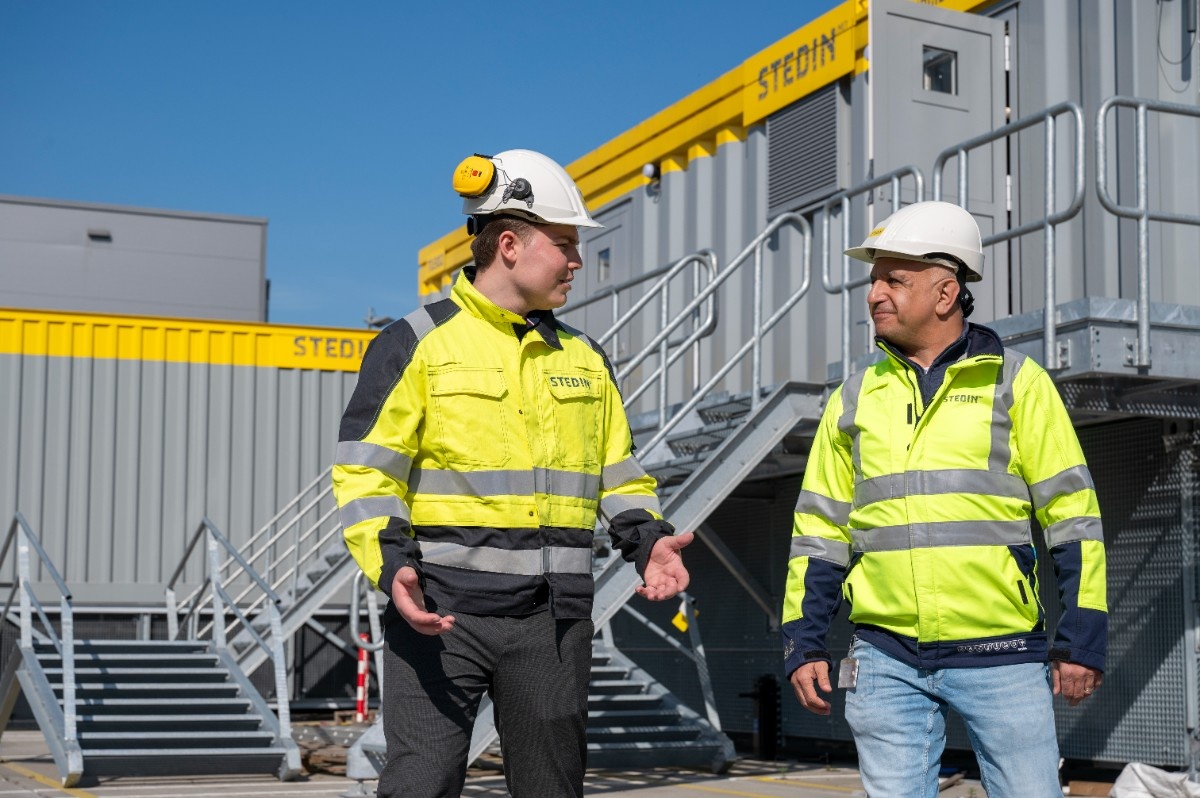
Engineering Elektra
Slimme oplossingen voor complexe uitdagingen. Of je nu werkt aan het ontwerp van een nieuw hoogspanningsstation of een aanvraag voor een laadpaal: jouw werk is onmisbaar voor de energietransitie.
-
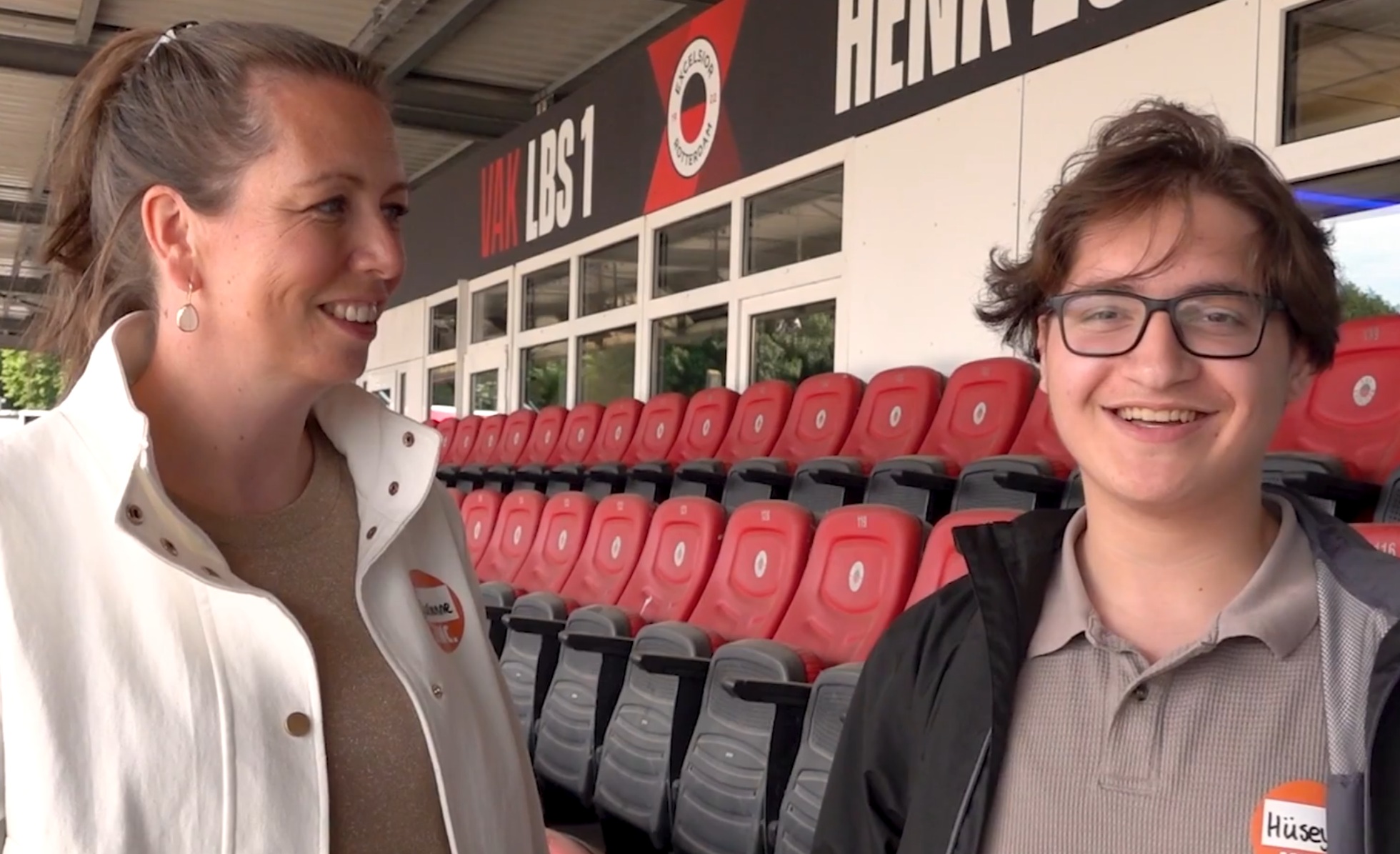
Hüseyin is Baas van Morgen
Op 3 juni verwelkomden we onze Baas van Morgen: Hüseyin, 16 jaar en leerling van Portus Juliana in Rotterdam. Voor één dag mocht hij plaatsnemen op de stoel van Marianne van der Maarel, directeur Instandhouding.
-
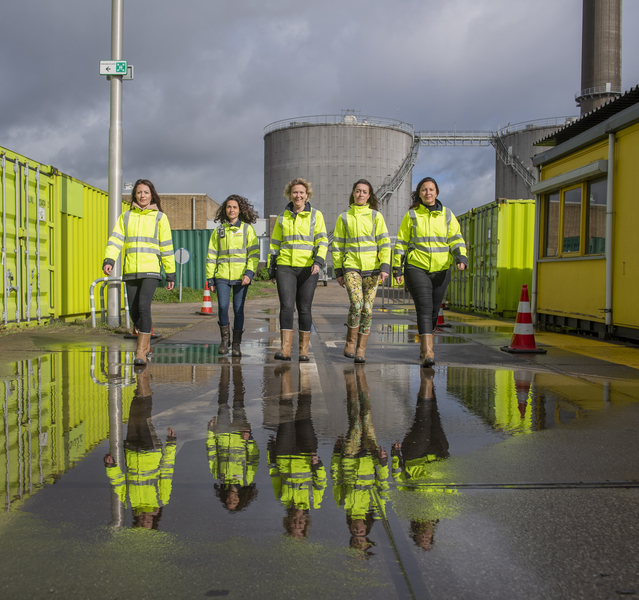
Women in Engineering
Bij Stedin werken veel collega’s aan de energietransitie, waaronder een groeiende groep vrouwelijke engineers. Hun verhalen laten zien hoe veelzijdig en inspirerend een carrière in techniek kan zijn.
-
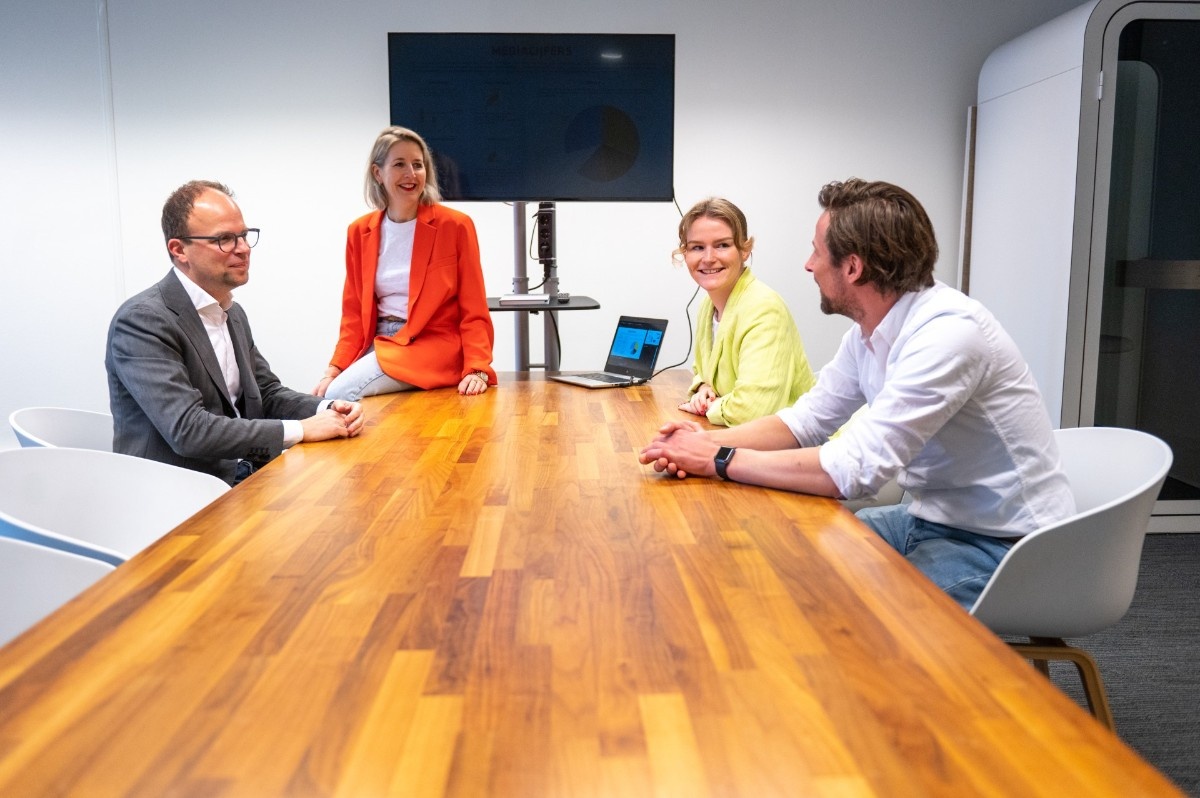
Marketing, Verkoop en Communicatie
Bij Marketing, Verkoop & Communicatie zorg je dat Stedin niet alleen vandaag, maar ook morgen relevant en herkenbaar is. Jij vertaalt complexe uitdagingen van de energietransitie naar heldere boodschappen en slimme strategieën.
Related Job List Section - (Section 12)
CMS Enabled: No (Radancy managed)
Section usage: Use existing
Suggested Use: This tab module contains the related jobs, saved jobs and recently viewed jobs.
Notes: This module is designed to be reused on multiple pages - the related jobs list will match the job facets assigned to the page it is placed on. This means the same module can display different results on different pages. Radancy will create the required versions.
Available Code Snippets:
- None
De lijst met opgeslagen vacatures is leeg.
Er zijn geen recent bekeken vacatures om weer te geven.
Copy - (Section 13)
CMS Enabled: Yes
Section Usage: Add new
Suggested Use: Copy content
Notes: Create a new version using the "Add new" menu. Section 13 - Copy, can be edited.
Available Code Snippets:
- v1 - Section 13 - Copy Reset: Used to reset the copy back to the default style and lorem ipsum copy.
Heading text
Lorem ipsum dolor sit amet, consectetur adipiscing elit, sed do eiusmod tempor incididunt ut labore et dolore magna aliqua. Lorem ipsum dolor sit amet, consectetur adipiscing elit, sed do eiusmod.
Accordion - (Section 14)
CMS Enabled: Yes
Section Usage: Add new
Suggested Use: Accordion
Notes: It is recommended to reuse existing accordions if the content is expected to remain the same across multiple pages/usages. To create a new version simply select the "Accordion - (Section 14)" from the 'Add New' menu.
By default, this section will create 10 accordion items (in admin view, these are the modules located on the right hand column of the section). Users are able to add, edit or remove items from these accordion sections depending on need.
When creating a new item (Custom HTML type), be sure to select "v1 - Section 14 - Custom HTML Layout" as the layout and then replace the CMS editor content with the "v1 - Section 14 - Item Reset" snippet. It is absolutely necessary for each item's button to have a unique ID throughout the page that it is on. For every new item created, it's necessary to update the ID using the CMS editor in "source code" view. Look for this in the code: 'id="change-me-unique"'. The "change-me-unique"" value between the "'s is what needs to be changed and unique (the actual value may vary). There are rules regarding what the value can be and they are:
- no spaces allowed, i.e. "my new id" is not valid but "my-new-id" is.
- no punctuation or special characters are allowed, i.e."my,new-id".
- the value has to be unique throughout the page. No two items can be the same if they are on the same page.
When updating the item's heading/button text, it's recommended to use the "source code" view to make the changes.
Available Code Snippets:N/A
- v1 - Section 14 - Intro Reset: is used to reset this section's heading and summary paragraph.
- v1 - Section 14 - Item Reset: is used to reset an item's content.
Heading Text
Lorem ipsum dolor sit amet, consectetur adipiscing elit. Mauris facilisis nunc aliquet auctor interdum. Nam malesuada quis arcu eu sodales. Aliquam consectetur nisi a sodales molestie. Curabitur iaculis diam vitae mauris tempus sagittis. Pellentesque molestie urna tempus neque elementum tincidunt.
Lorem ipsum dolor sit amet, consectetur adipiscing elit. Nam euismod, ante erat imperdiet velit, nec laoreet enim lacus a velit. Nam luctus, enim in interdum condimentum, nisl diam iaculis lorem, vel volutpat mi leo sit amet lectus. Praesent non odio bibendum magna bibendum accumsan.
Lorem ipsum dolor sit amet, consectetur adipiscing elit. Nam euismod, ante erat imperdiet velit, nec laoreet enim lacus a velit. Nam luctus, enim in interdum condimentum, nisl diam iaculis lorem, vel volutpat mi leo sit amet lectus. Praesent non odio bibendum magna bibendum accumsan.
Lorem ipsum dolor sit amet, consectetur adipiscing elit. Nam euismod, ante erat imperdiet velit, nec laoreet enim lacus a velit. Nam luctus, enim in interdum condimentum, nisl diam iaculis lorem, vel volutpat mi leo sit amet lectus. Praesent non odio bibendum magna bibendum accumsan.
Lorem ipsum dolor sit amet, consectetur adipiscing elit. Nam euismod, ante erat imperdiet velit, nec laoreet enim lacus a velit. Nam luctus, enim in interdum condimentum, nisl diam iaculis lorem, vel volutpat mi leo sit amet lectus. Praesent non odio bibendum magna bibendum accumsan.
Lorem ipsum dolor sit amet, consectetur adipiscing elit. Nam euismod, ante erat imperdiet velit, nec laoreet enim lacus a velit. Nam luctus, enim in interdum condimentum, nisl diam iaculis lorem, vel volutpat mi leo sit amet lectus. Praesent non odio bibendum magna bibendum accumsan.
Lorem ipsum dolor sit amet, consectetur adipiscing elit. Nam euismod, ante erat imperdiet velit, nec laoreet enim lacus a velit. Nam luctus, enim in interdum condimentum, nisl diam iaculis lorem, vel volutpat mi leo sit amet lectus. Praesent non odio bibendum magna bibendum accumsan.
Lorem ipsum dolor sit amet, consectetur adipiscing elit. Nam euismod, ante erat imperdiet velit, nec laoreet enim lacus a velit. Nam luctus, enim in interdum condimentum, nisl diam iaculis lorem, vel volutpat mi leo sit amet lectus. Praesent non odio bibendum magna bibendum accumsan.
Lorem ipsum dolor sit amet, consectetur adipiscing elit. Nam euismod, ante erat imperdiet velit, nec laoreet enim lacus a velit. Nam luctus, enim in interdum condimentum, nisl diam iaculis lorem, vel volutpat mi leo sit amet lectus. Praesent non odio bibendum magna bibendum accumsan.
Lorem ipsum dolor sit amet, consectetur adipiscing elit. Nam euismod, ante erat imperdiet velit, nec laoreet enim lacus a velit. Nam luctus, enim in interdum condimentum, nisl diam iaculis lorem, vel volutpat mi leo sit amet lectus. Praesent non odio bibendum magna bibendum accumsan.
Lorem ipsum dolor sit amet, consectetur adipiscing elit. Nam euismod, ante erat imperdiet velit, nec laoreet enim lacus a velit. Nam luctus, enim in interdum condimentum, nisl diam iaculis lorem, vel volutpat mi leo sit amet lectus. Praesent non odio bibendum magna bibendum accumsan.
Accordion - (Section 14a)
CMS Enabled: Yes
Section Usage: Add new
Suggested Use: Accordion
Notes: It is recommended to reuse existing accordions if the content is expected to remain the same across multiple pages/usages. To create a new version simply select the "Accordion - (Section 14a)" from the 'Add New' menu.
By default, this section will create 10 accordion items (in admin view, these are the modules located on the right hand column of the section). Users are able to add, edit or remove items from these accordion sections depending on need.
When creating a new item (Custom HTML type), be sure to select "v1 - Section 14a - Custom HTML Layout" as the layout and then replace the CMS editor content with the "v1 - Section 14a - Item Reset" snippet. It is absolutely necessary for each item's button to have a unique ID throughout the page that it is on. For every new item created, it's necessary to update the ID using the CMS editor in "source code" view. Look for this in the code: 'id="change-me-unique"'. The "change-me-unique"" value between the "'s is what needs to be changed and unique (the actual value may vary). There are rules regarding what the value can be and they are:
- no spaces allowed, i.e. "my new id" is not valid but "my-new-id" is.
- no punctuation or special characters are allowed, i.e."my,new-id".
- the value has to be unique throughout the page. No two items can be the same if they are on the same page.
When updating the item's heading/button text, it's recommended to use the "source code" view to make the changes.
The icon is limited to 44x44px in mobile and 60x60px in desktop. There are no other styles applied to the icon. The image uploaded for the icon will need to be in the shape (i.e. circle) and desired background colour.
Available Code Snippets:N/A
- v1 - Section 14a - Intro Reset: is used to reset this section's heading and summary paragraph.
- v1 - Section 14a - Item Reset: is used to reset an item's content.
Heading Text
Lorem ipsum dolor sit amet, consectetur adipiscing elit. Mauris facilisis nunc aliquet auctor interdum. Nam malesuada quis arcu eu sodales. Aliquam consectetur nisi a sodales molestie. Curabitur iaculis diam vitae mauris tempus sagittis. Pellentesque molestie urna tempus neque elementum tincidunt.
Lorem ipsum dolor sit amet, consectetur adipiscing elit. Nam euismod, ante erat imperdiet velit, nec laoreet enim lacus a velit. Nam luctus, enim in interdum condimentum, nisl diam iaculis lorem, vel volutpat mi leo sit amet lectus. Praesent non odio bibendum magna bibendum accumsan.
Lorem ipsum dolor sit amet, consectetur adipiscing elit. Nam euismod, ante erat imperdiet velit, nec laoreet enim lacus a velit. Nam luctus, enim in interdum condimentum, nisl diam iaculis lorem, vel volutpat mi leo sit amet lectus. Praesent non odio bibendum magna bibendum accumsan.
Lorem ipsum dolor sit amet, consectetur adipiscing elit. Nam euismod, ante erat imperdiet velit, nec laoreet enim lacus a velit. Nam luctus, enim in interdum condimentum, nisl diam iaculis lorem, vel volutpat mi leo sit amet lectus. Praesent non odio bibendum magna bibendum accumsan.
Lorem ipsum dolor sit amet, consectetur adipiscing elit. Nam euismod, ante erat imperdiet velit, nec laoreet enim lacus a velit. Nam luctus, enim in interdum condimentum, nisl diam iaculis lorem, vel volutpat mi leo sit amet lectus. Praesent non odio bibendum magna bibendum accumsan.
Lorem ipsum dolor sit amet, consectetur adipiscing elit. Nam euismod, ante erat imperdiet velit, nec laoreet enim lacus a velit. Nam luctus, enim in interdum condimentum, nisl diam iaculis lorem, vel volutpat mi leo sit amet lectus. Praesent non odio bibendum magna bibendum accumsan.
Lorem ipsum dolor sit amet, consectetur adipiscing elit. Nam euismod, ante erat imperdiet velit, nec laoreet enim lacus a velit. Nam luctus, enim in interdum condimentum, nisl diam iaculis lorem, vel volutpat mi leo sit amet lectus. Praesent non odio bibendum magna bibendum accumsan.
Lorem ipsum dolor sit amet, consectetur adipiscing elit. Nam euismod, ante erat imperdiet velit, nec laoreet enim lacus a velit. Nam luctus, enim in interdum condimentum, nisl diam iaculis lorem, vel volutpat mi leo sit amet lectus. Praesent non odio bibendum magna bibendum accumsan.
Lorem ipsum dolor sit amet, consectetur adipiscing elit. Nam euismod, ante erat imperdiet velit, nec laoreet enim lacus a velit. Nam luctus, enim in interdum condimentum, nisl diam iaculis lorem, vel volutpat mi leo sit amet lectus. Praesent non odio bibendum magna bibendum accumsan.
Lorem ipsum dolor sit amet, consectetur adipiscing elit. Nam euismod, ante erat imperdiet velit, nec laoreet enim lacus a velit. Nam luctus, enim in interdum condimentum, nisl diam iaculis lorem, vel volutpat mi leo sit amet lectus. Praesent non odio bibendum magna bibendum accumsan.
Lorem ipsum dolor sit amet, consectetur adipiscing elit. Nam euismod, ante erat imperdiet velit, nec laoreet enim lacus a velit. Nam luctus, enim in interdum condimentum, nisl diam iaculis lorem, vel volutpat mi leo sit amet lectus. Praesent non odio bibendum magna bibendum accumsan.
Copy - (Section 22)
CMS Enabled: Yes
Section Usage: Add new
Suggested Use: For pieces of contents with a heading and a list of items to be displayed.
Notes: The image icons do not have any styles applied to them so they will display as is. The recommended maximum size is 60x60px in .png/.webp format. Image icons should be the same height and width for the best results. Users can manage images using the 'asset picker' in the CMS editor. A text only version can be achieved by removing the images within the CMS editor.
Available Code Snippets:
- v1 - Section 22 - Heading Reset: Used to reset the section's heading copy to lorem ipsum.
- v1 - Section 22 - Copy Reset: Used to reset the section's main copy content to lorem ipsum and placeholder images.
Lorem ipsum dolor sit amet.
 Lorem ipsum dolor sit amet, consectetur adipiscing elit.
- Nunc efficitur tortor at nulla pellentesque, in iaculis neque euismod.
- Fusce nec sapien fermentum libero sollicitudin maximus consequat eget eros.
- Vestibulum gravida justo mi, sit amet lobortis elit suscipit vitae.
Testimonial - (Section 23)
CMS Enabled: Yes
Section Usage: Add new
Suggested Use: For testimonial content with an image and quote/copy.
Notes: The recommended character length for the quote/copy is 120 characters however there is no hard limit. The section may not look desirable the longer the copy. The recommended image size for small devices is 310x221px and 310x310px for large devices.
Available Code Snippets:
- v1 - Section 23 - Copy Reset: Use to reset the quote copy.

Lorem ipsum dolor sit amet, consectetur adipiscing elit. Nunc efficitur tortor nulla pellentesq iaculis neque euismod.
Multi item - (Section 10b)
CMS Enabled: Yes
Section usage: Add new
Suggested Use: Multi item content
Notes: Create a new version using the "Add new" menu. Both modules, Section 10 - Text, Section 10 - Copy and Section 10 - Media, can be edited.
Available Code Snippets:
- v1 - Section 10 - Text Reset: Used to reset the copy back to the default style and lorem ipsum copy.
- v1 - section -10 - copy with text: Used to reset the copy back to the default style and lorem ipsum copy.
- v1 - section -10 - copy with button: Used to reset the copy back to the default style and lorem ipsum button.
Story / Content block
Mainly used for breaking up the page and showcasing different story pages.
Engineering is niet alleen een mannensport

Lorem ipsum dolor sit amet consectetur
Note To Developer: Please include documentation for this section!
Blijf aangesloten op nieuwe kansen
Schrijf je in voor onze job alert! We sturen je de leukste vacatures die perfect aansluiten bij jouw profiel.
